


It seems like every tool we use for work is getting an AI upgrade these days, and Google Docs is no different. You’ve probably seen AI features popping up in Gmail, Sheets, and Slides, as Google has woven its AI, Gemini, directly into its workspace apps. The most obvious of these is the "Help me write" feature in Google Docs, which is supposed to be your creative writing partner.
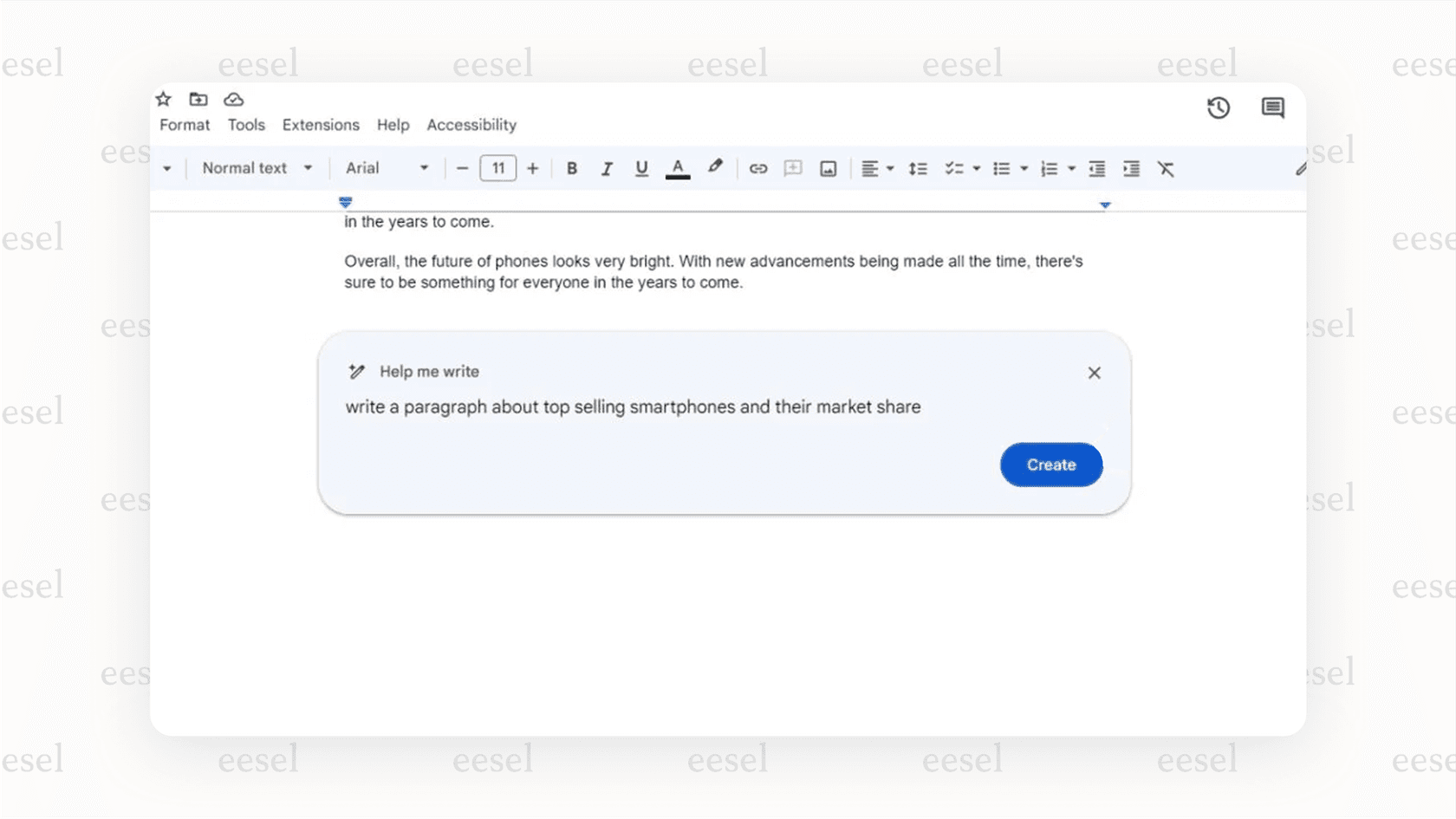
While this built-in tool is handy for some basic writing tasks, it’s a bit like having a helpful intern who’s only allowed to read one page at a time. This guide will walk you through its main features, explain the real-world business problems you'll run into, and show you how a dedicated AI integration can actually help your team get more done by connecting Google Docs to your entire company's knowledge.
What is the native Google Docs AI feature?
When you hear "Google Docs AI," people are usually talking about the smart writing features powered by Google's Gemini AI, now built right into Google Workspace. Think of it as a writing assistant that lives inside your document, ready to jump in when you need a hand.
Based on what you ask it to do, the native AI can:
-
Draft new text: You can ask it to write something from scratch, like a friendly email, an outline for a blog post, or a few social media captions.
-
Rewrite what you’ve written: It can take a piece of text and help you rephrase it, make it shorter or longer, or change the tone to be more formal or casual.
-
Summarize your document: Give it a long document, and it can boil it down to the key points, saving you from having to read every single word.
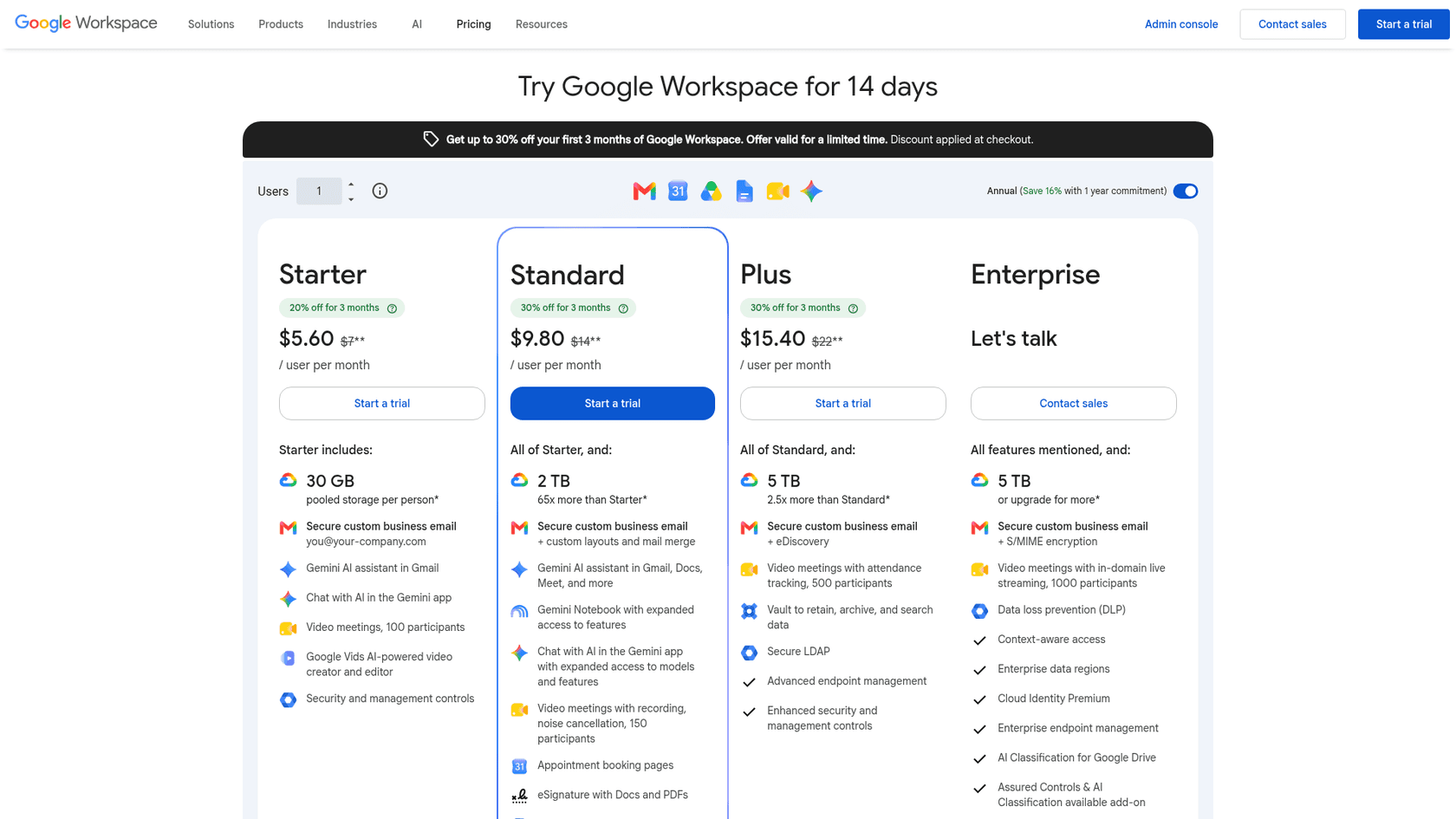
It’s a nice feature, but it's not free. These tools are part of the paid Google Workspace plans, with Gemini in Docs starting at Business Standard ($14 per user per month on an annual commitment).
What the built-in Google Docs AI is good for
Before we dive into its weak spots, it’s worth pointing out what the native tool does well. For an individual user, it can be a solid sidekick for everyday writing.
No more blank pages: AI writing assistance in docs
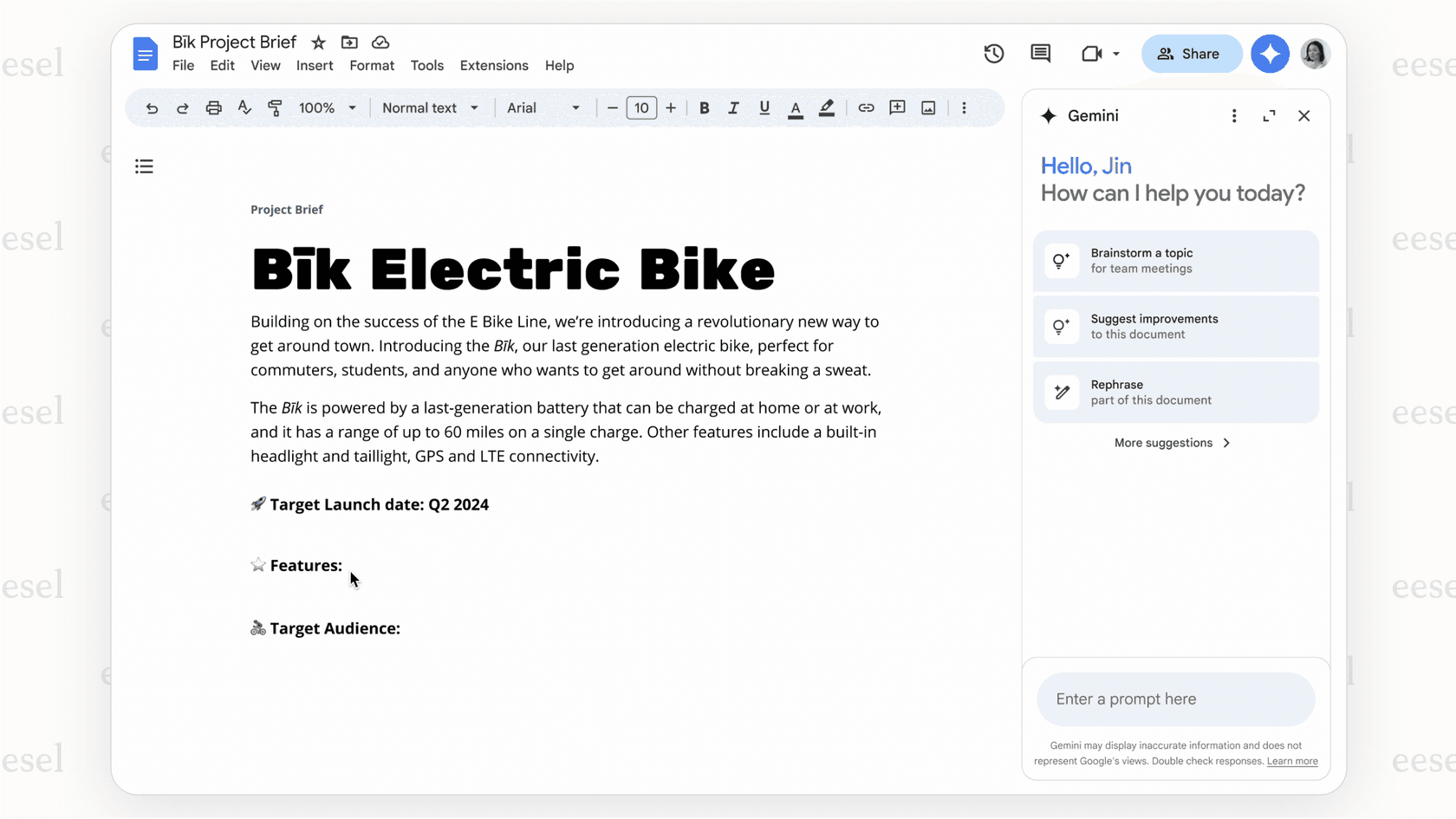
We’ve all been there, staring at that blinking cursor on a white screen. The Google Docs AI is great for just getting something down on the page. You can give it a simple prompt like, "Write an outline for a blog post about remote work challenges," and it will spit out a structure you can start building on. It’s also good for whipping up first drafts of routine emails, simple project proposals, or meeting agendas.
Refine your writing with smart suggestions
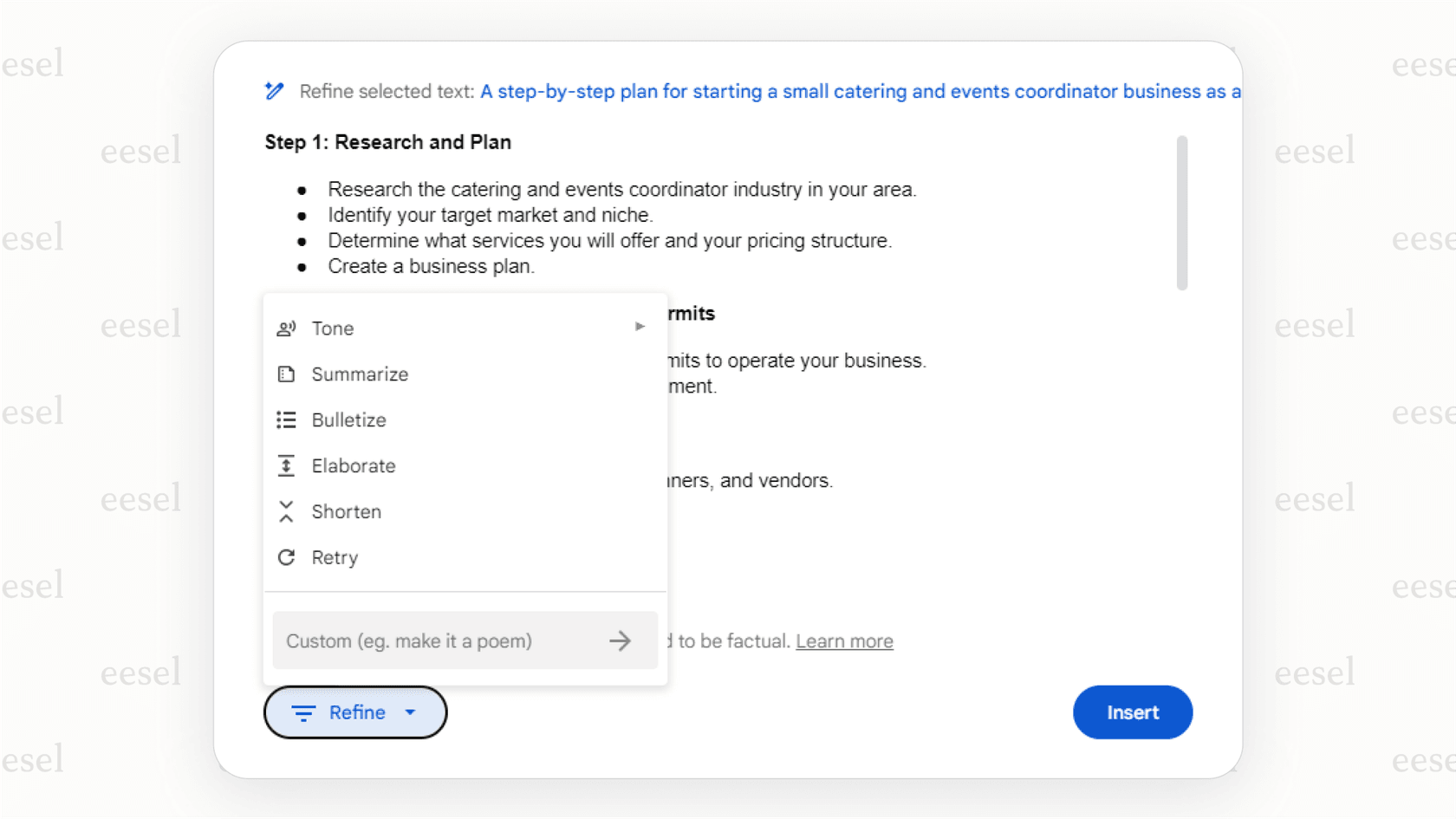
Once you have some text, the "Refine" options can help you clean it up. You can highlight a paragraph and ask the AI to rephrase it for better flow, shorten it to be more punchy, or elaborate to add more detail. The tone adjustment is especially handy. For example, you can take a dense, technical paragraph and ask it to make it a simple, client-friendly explanation.
Quickly understand long documents with AI summaries
If someone drops a 20-page report on your desk and you need the highlights fast, the "Summarize" function is a real time-saver. It can scan the document and pull out the main points, which is perfect for understanding the takeaways from long meeting notes or dense research without having to read the whole thing.
Pro Tip: To get the best results from the built-in Google Docs AI, give it clear instructions instead of asking open-ended questions. For example, instead of, "What should I write for a thank you note?", try, "Write a professional thank you note to a client after a successful project."
Where native AI in Docs may not meet business needs
While the native tool is fine as a personal writing buddy, its shine wears off pretty fast when you try to use it for team projects that rely on shared company knowledge. Here’s where it stumbles.
Why it is stuck in a one-document mindset
This is its biggest limit for team knowledge. Gemini in Docs can summarize files from Google Drive and emails from Gmail and reference other files when you ask, so it isn't limited to the open document. What Google's help page doesn't list as sources are your team's Confluence pages or Zendesk help articles, and that's where your other Google Docs and wider knowledge still need a connector. If the latest shipping policy lives in a Confluence page, it isn't one of the sources Google lists.
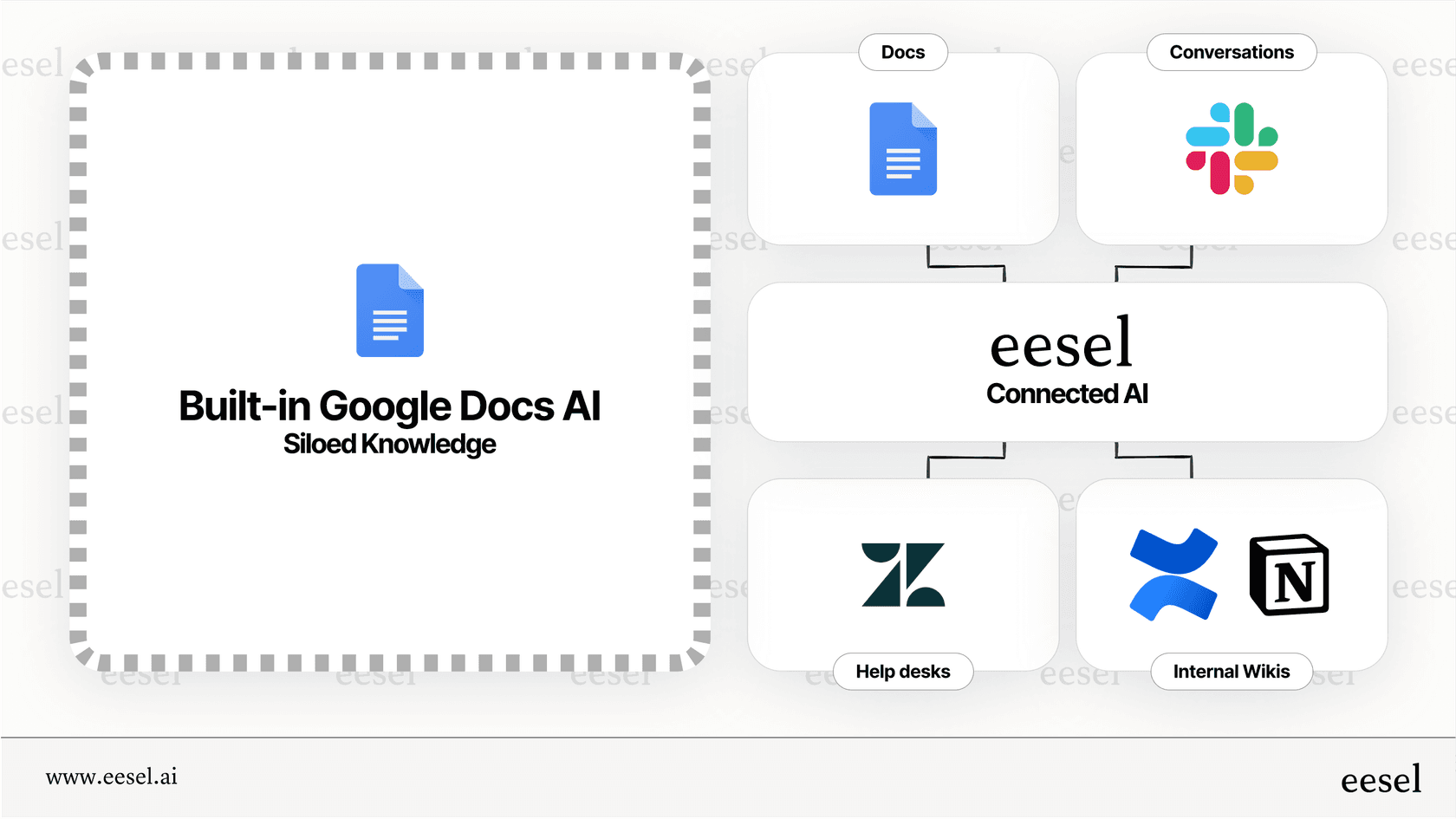
It can generate text, but can’t take action
The AI can put words on a page, and the actions Google's help page lists for Docs are drafting, summarizing, referencing Drive and Gmail files, and images. Looking up an order status in Shopify, checking a customer's subscription plan, or creating a ticket in Jira isn't on that list. Google does offer Workspace Studio for building automations from plain-language descriptions, but it is a separate tool from the Docs side panel. So inside Docs, it's a writing partner rather than something that completes tasks across your apps.
| Feature | Native Google Docs AI | Connected AI (like eesel) |
|---|---|---|
| Drafts Text | Yes | Yes |
| Answers from Company Knowledge | Partly (open doc, Drive, Gmail) | Yes (across all connected apps) |
| Performs Actions (e.g., look up data) | Not in the Docs panel | Yes |
| Customizable Rules & Voice | Limited (tone options, Gems) | Yes |
Its knowledge is broad, not business-specific
The AI is powered by Google's general models, which means it doesn't understand your company's specific jargon, brand voice, or internal ways of doing things. Its answers lean generic because they come from broad training data plus whichever Drive and Gmail files you point it at, not your wider business's private knowledge. It won't know your product names, internal acronyms, or the troubleshooting steps your support team has perfected unless they sit in files you reference.
Limited customization for your unique needs
Beyond tone options and Gems (reusable prompts for repetitive tasks), you have limited control over how the AI behaves. Google's help page doesn't list a way to set rules for what it should or shouldn't say, add specific instructions (like "If you don't know the answer, tag the Head of Product"), or train it to match your company’s unique voice. It's a one-size-fits-all tool, but every business has different needs.
Connecting your Google Docs AI to your company's brain
The fix isn't to ditch the Google Docs AI, but to give it a much bigger brain to work with. This is what a tool like eesel AI does. Instead of a walled-off writing assistant, eesel acts as an intelligence layer on top of all your existing tools, including Google Docs, creating a single source of truth for your entire company. It’s built to solve the exact problems that isolated AI tools create.
Turn internal knowledge into in-document intelligence
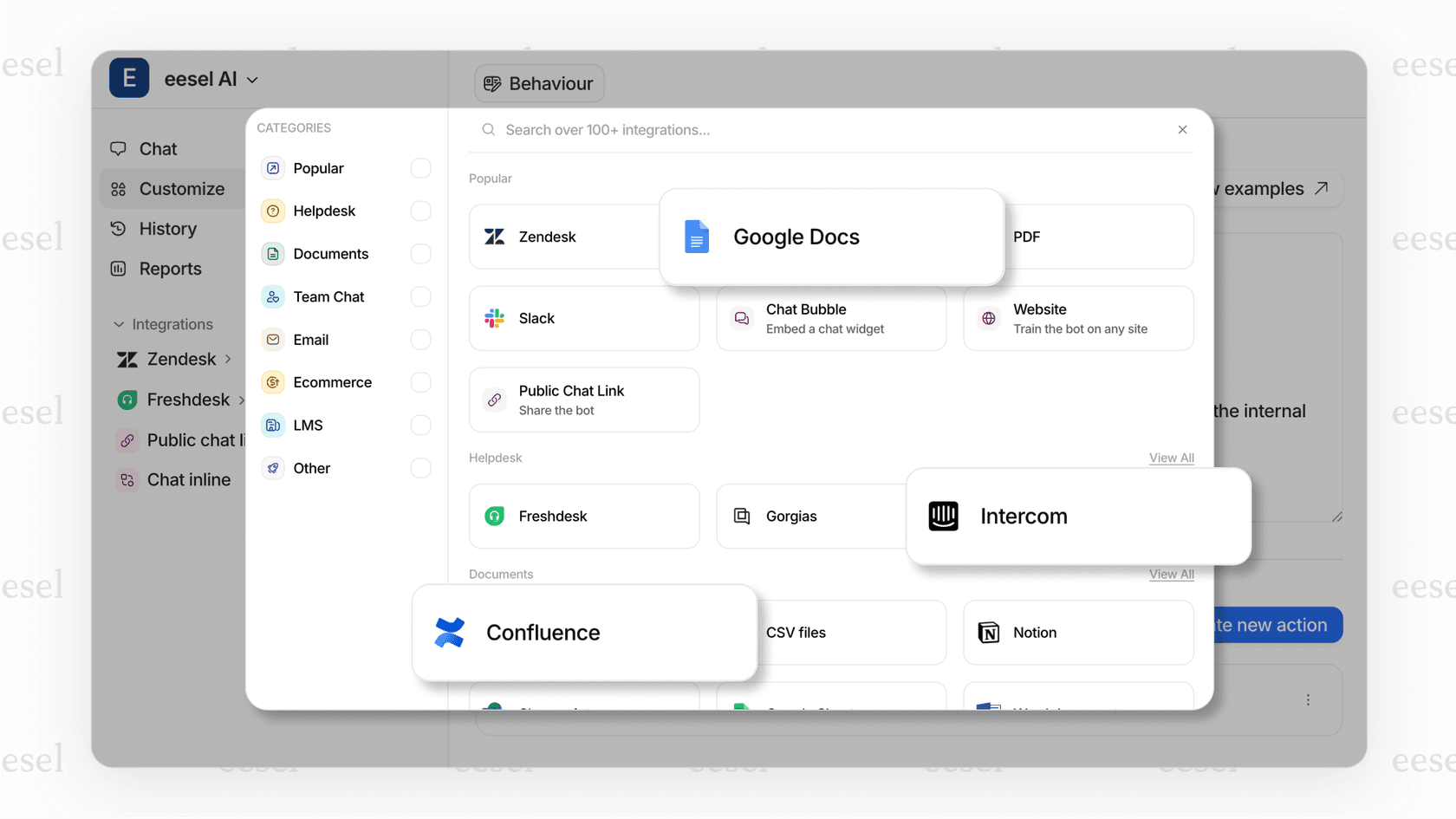
eesel connects to all the places your company knowledge lives, not just one document. It plugs into your Google Docs, Confluence, Notion, Slack chats, and more. By doing this, it builds a unified knowledge base for the AI to use, making sure every answer it gives is accurate and based on your company's own information.
Get answers based on your organization’s information
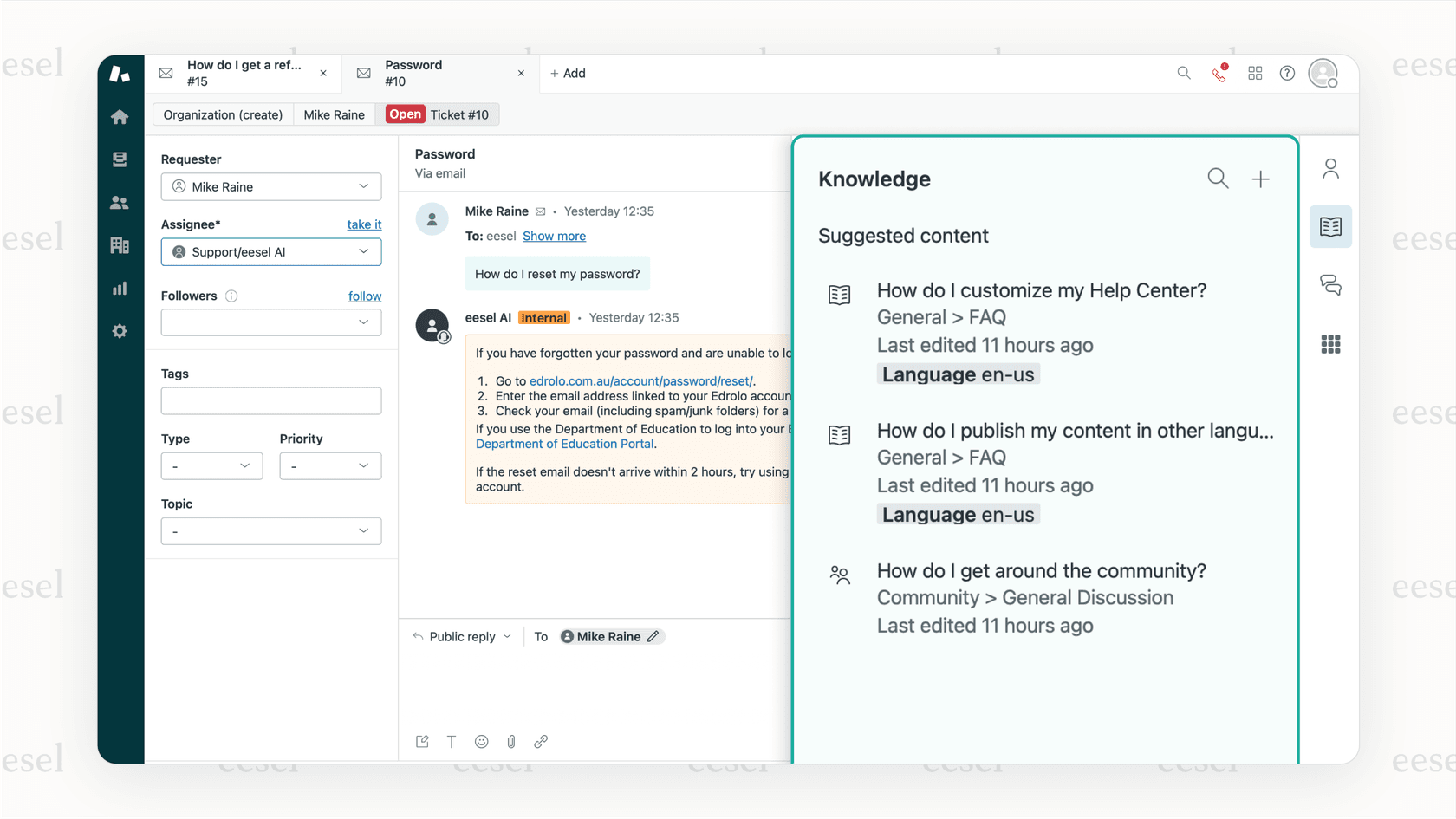
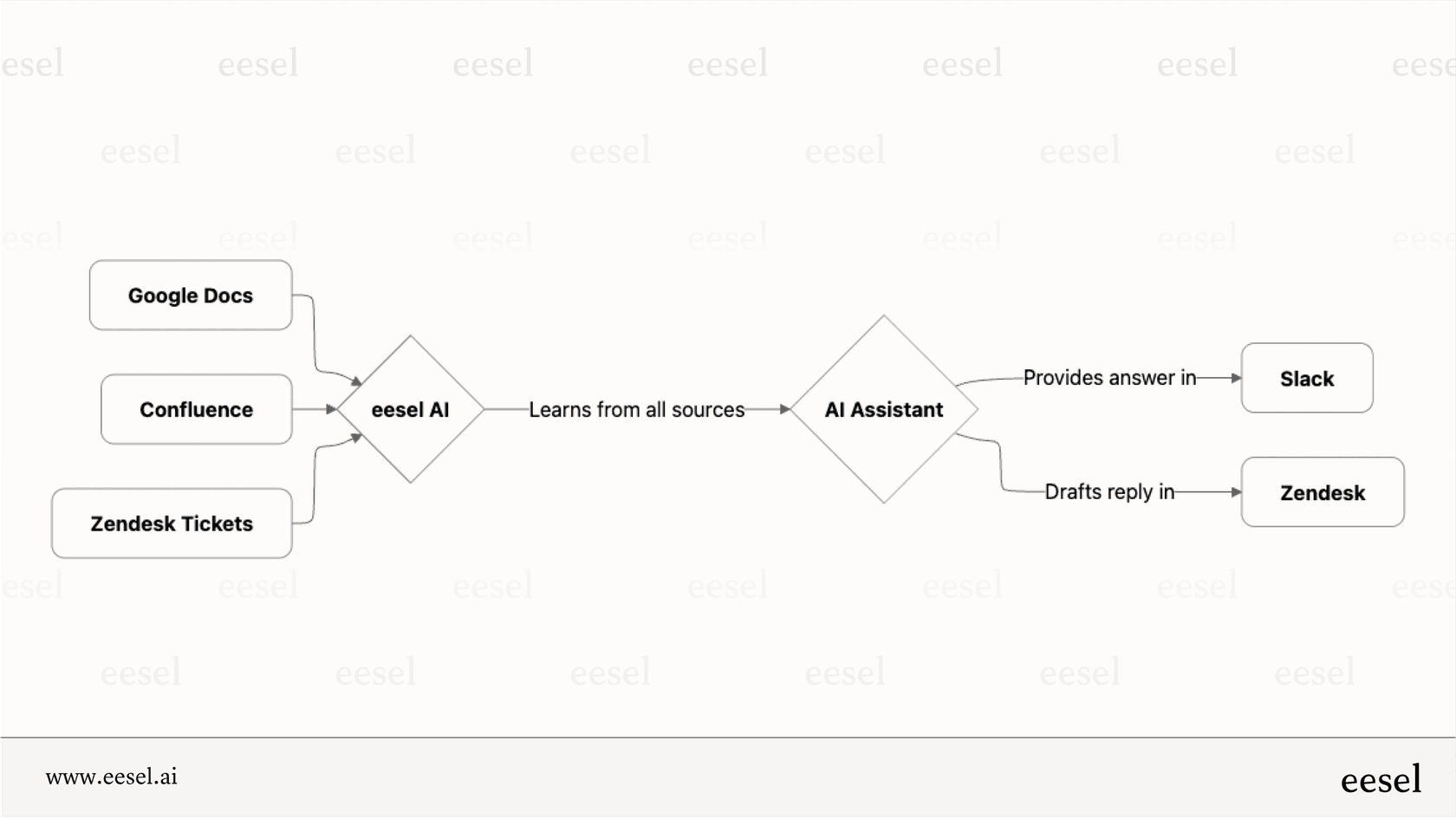
With all your knowledge connected, your team can get instant answers right where they are. A support agent using an AI copilot in Zendesk can get a perfect draft reply that pulls the right troubleshooting steps from a technical guide saved in a Google Doc. Or, someone can ask a question in Microsoft Teams, and the eesel bot will find the answer in your approved wikis without anyone having to go hunting for it.
Go beyond writing: Automate and streamline workflows
Unlike the native tool that only writes, eesel's "AI Actions" let the AI actually perform tasks. It can automatically sort support tickets, look up live data from other apps, and pass complex issues to the right person. This turns your Google Docs from just being pages with words into tools that help your team get work done.
From simple writer to smart assistant
The built-in Google Docs AI is a decent feature for individual writing tasks and a great way to get past writer's block. It's a solid starting point for anyone looking to dip their toes into AI at work.
But for businesses that rely on shared knowledge and teamwork, its siloed design is a major hurdle. An AI that can actually help your business needs to connect your Google Docs to all your other knowledge sources and apps. Instead of just helping you write in a single document, you can give your team an AI that knows your business inside and out. eesel AI connects your Google Docs, help center, and other wikis to provide instant, accurate answers and automate tasks right where your team already works.
See how eesel AI can help your team do their work, start free with 100 credits or book a demo today!
Frequently asked questions
Is the Google Docs AI feature free to use?
The built-in AI features are not part of the free version of Google Docs. They are included in paid Google Workspace subscriptions, such as the Business Standard plan or higher, and in Google AI Pro ($19.99 a month in the US) for personal accounts.
Can the native Google Docs AI access information from other documents or company apps?
Partly. Gemini in Docs can summarize files from Google Drive and emails from Gmail and reference other files, as described in Google's help pages. Outside wikis and apps like Confluence or Zendesk aren't listed as sources, which is where a connected tool comes in.
How is the knowledge used by the Google Docs AI different from a connected AI tool?
The native Google Docs AI draws on Google's large language models plus the Drive and Gmail files you reference, so its answers aren't built on your wider company knowledge. A connected tool builds a knowledge base from your actual company documents, ensuring answers are accurate and reflect your internal data.
What's the best way to get useful results from the Google Docs AI for writing tasks?
For the best results, be as specific as possible with your instructions. Instead of asking a broad question, provide a clear prompt with context, such as "Write a formal email to a new client introducing our project management process."