

So, you’ve spent ages building a solid Zendesk Knowledge, and it's a great foundation. But as your company grows, knowledge often expands beyond a single platform. Even with Zendesk’s built-in semantic search, you might find that some answers are tucked away in other tools. To give your customers and agents the best experience, you might want to extend your search capabilities.
Most teams' knowledge is a rich mix of internal docs, support tickets, and Slack threads. While Zendesk’s search is excellent for what's in your Help Center, connecting it to all the other places your team's knowledge lives can make it even more powerful.
Let's walk through how to build a search layer that complements Zendesk Knowledge by connecting it to all the other places your team's knowledge is gathered.
What you’ll need
Before we jump into the how-to, let's get our tools lined up. The good news is you don't need a massive budget or a team of engineers to pull this off. You just need a thoughtful approach and the right platform to work alongside Zendesk.
Here’s a quick checklist of what you'll need:
-
Your Zendesk account: This one’s a given. You'll need admin access to your Zendesk instance so you can access your Help Center articles and reporting dashboards.
-
A map of your knowledge sources: Take a second and think about where your team's day-to-day knowledge lives. Often, it’s distributed across several helpful spots:
- Internal wikis like Confluence or Notion.
- Shared folders full of Google Docs with project plans and updates.
- Important quick fixes buried in Slack or Microsoft Teams channels.
- The valuable history of Zendesk tickets, which contains a wealth of solved problems and approved answers.
-
A no-code AI platform: You can choose a tool to act as a central brain, connecting these sources. A platform like eesel AI is one option that works beautifully within the Zendesk ecosystem. It lets you link your knowledge and deploy an AI assistant in a few minutes.
A step-by-step guide
Ready to turn your search setup into an even more powerful answer machine? Here’s how to do it, step by step.
Step 1: Benchmark your current search performance
To optimize your setup, it helps to know where you are starting. You can get great insights into how your current search is performing to see where you can add the most value.
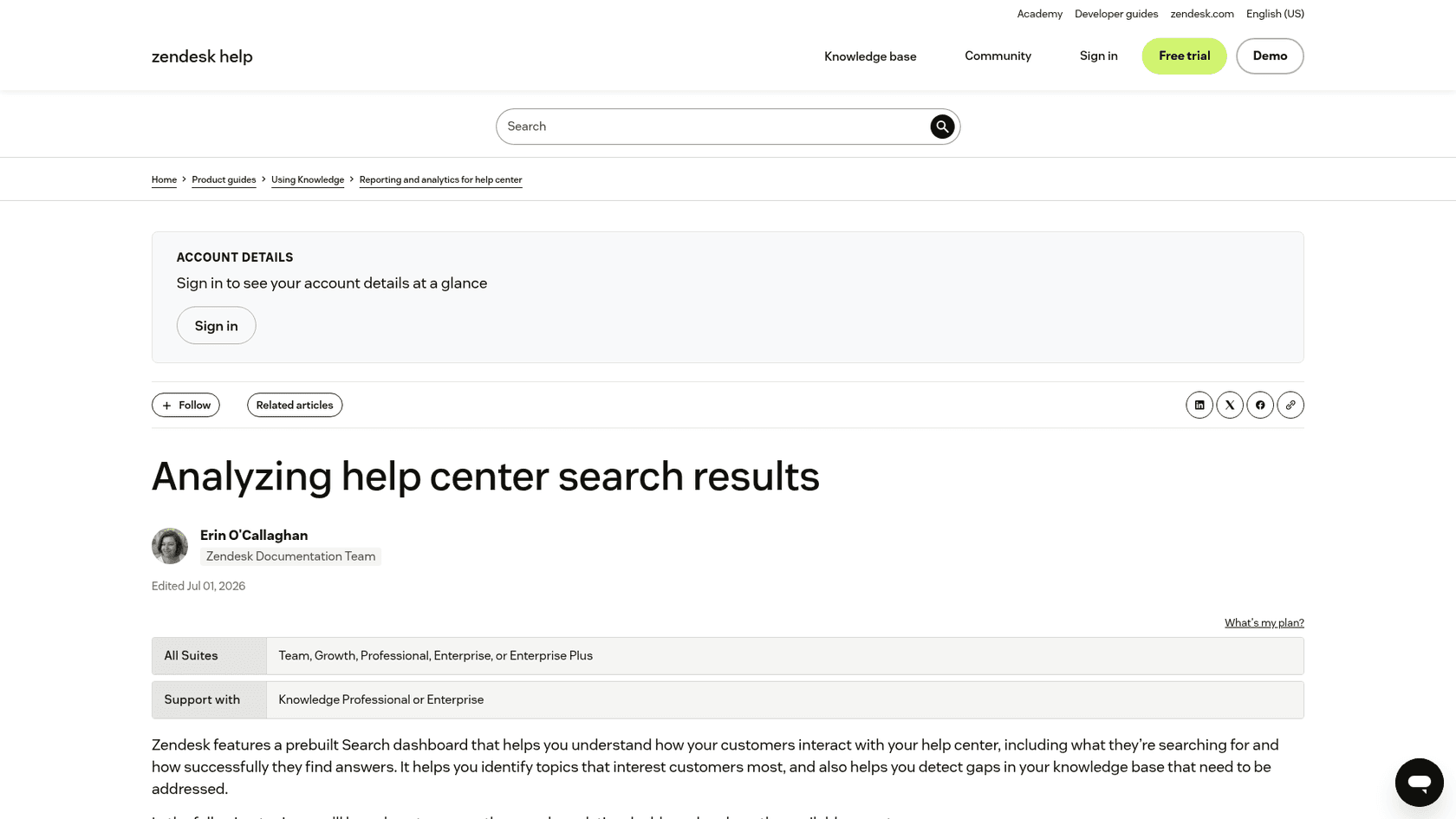
Log into your Zendesk account, open Analytics, and select the Zendesk Knowledge dashboard. Click the "Search" tab to review your performance, per Zendesk's guide. Look at a few key metrics:
-
Searches with no results: This is a helpful signal. If people are searching for terms that return nothing, it shows you what content you might need to bring into the search experience from other sources.
-
Click-through rate (CTR): This helps you understand if users are finding exactly what they need immediately. High CTR shows your titles and snippets are hitting the mark.
-
Tickets created: Zendesk lets you compare search volume with tickets created to spot correlations, which helps you find opportunities to reduce ticket volume through more direct answers.
Gathering this data gives you a clear baseline. It’s the perfect way to show how extending your search capabilities can further benefit your team.
Step 2: Maximize the potential of your search ecosystem
Zendesk's built-in semantic search is a sophisticated, enterprise-grade feature. It's a significant step up from basic keyword search. As Zendesk notes in its documentation, it is designed to understand intent, so a new agent can ask "how do I start using reports?" instead of guessing keywords. It is included with Zendesk Suite plans, or with Support plus Knowledge Professional or Enterprise.
To build on this foundation, you can address common organizational needs:
-
Unifying knowledge across tools: Often, valuable information resides in the Confluence page your product team just published or a Slack channel. By adding a search layer, you ensure Zendesk remains the central hub for all this information. Zendesk's own knowledge connectors already sync sources such as Confluence, Google Drive, Notion and SharePoint into help center search, up to 50 sources. Slack and Microsoft Teams are not among the dedicated connectors, so chat history is where an outside layer adds the most. With generative search turned on, that external content also feeds the AI-generated answers in your help center.
-
Customizing the experience: While Zendesk provides excellent out-of-the-box settings, you may want additional flexibility to tweak how results are prioritized for specific business cases.
-
Leveraging advanced AI features: Zendesk offers powerful AI tools through its tiered plans, providing scalable options for growing businesses. You can further enhance these by using complementary tools that aggregate knowledge from every corner of your company.
Here is where each source stands, based on Zendesk's connector documentation:
| Knowledge source | Zendesk dedicated connector | eesel integration |
|---|---|---|
| Confluence | Yes (personal spaces can't be connected) | Yes |
| Notion | Yes (one connection per account) | Yes |
| Google Drive / Docs | Yes | Yes |
| SharePoint | Yes | Yes |
| Slack | No dedicated connector (the universal REST connector is the route) | Yes |
| Microsoft Teams | No dedicated connector | Yes |
| Past Zendesk tickets | Native | Yes |
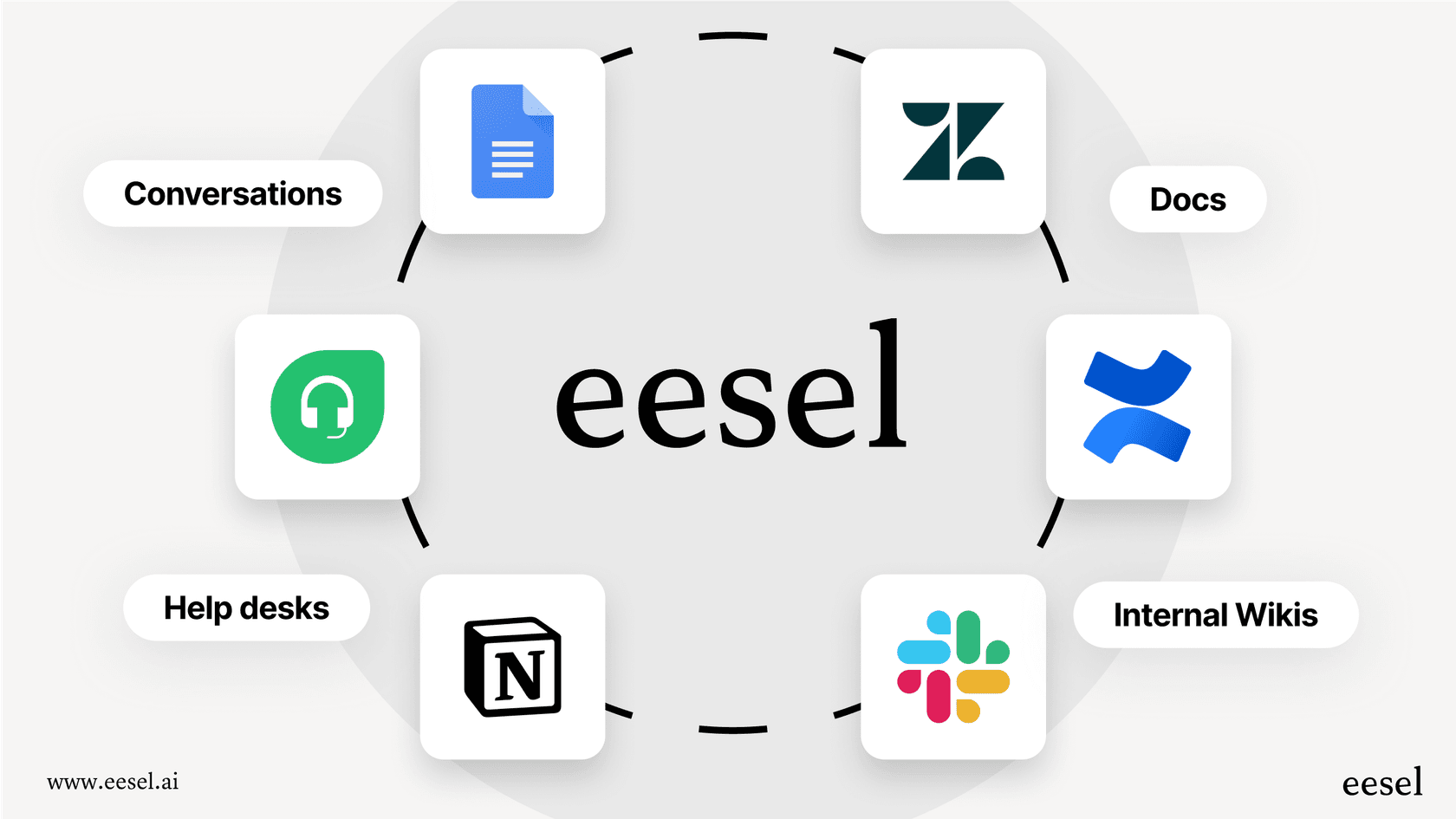
A comprehensive semantic search sees your entire knowledge ecosystem. A platform like eesel AI acts as a helpful connector, pulling from all your sources to create a single source of truth.
Step 3: Unify all your knowledge sources in one place
This step creates a central knowledge hub that knows everything your team knows.
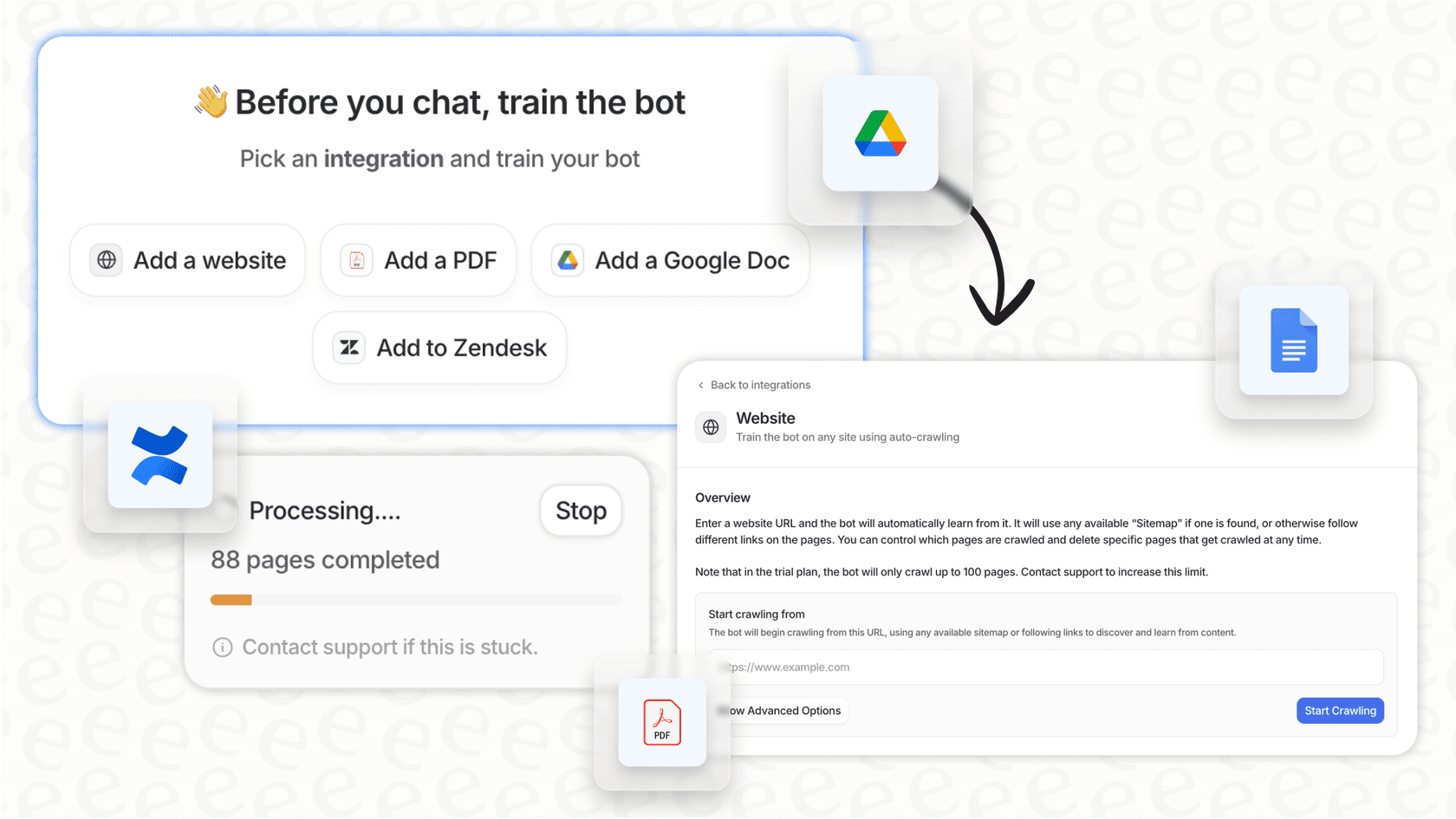
Using a platform like eesel AI is one way to achieve this. It’s designed to be self-serve, so you can get everything set up quickly.
Once you're in, you can start connecting your knowledge sources:
-
Connect your Zendesk Help Center: This links all your official articles.
-
Connect your internal wiki: Link your Confluence, Notion, or Sharepoint to include internal playbooks.
-
Train on past tickets: eesel AI can review your historical Zendesk tickets to learn your brand voice and common solutions.
-
Add everything else: Connect shared Google Drives, Slack channels, and PDFs to make the search even more robust.
By unifying everything, you provide a more complete picture, allowing your search to give accurate, comprehensive answers.
Step 4: Configure your AI for custom answers and actions
A great search tool delivers information effectively and can even take action.
-
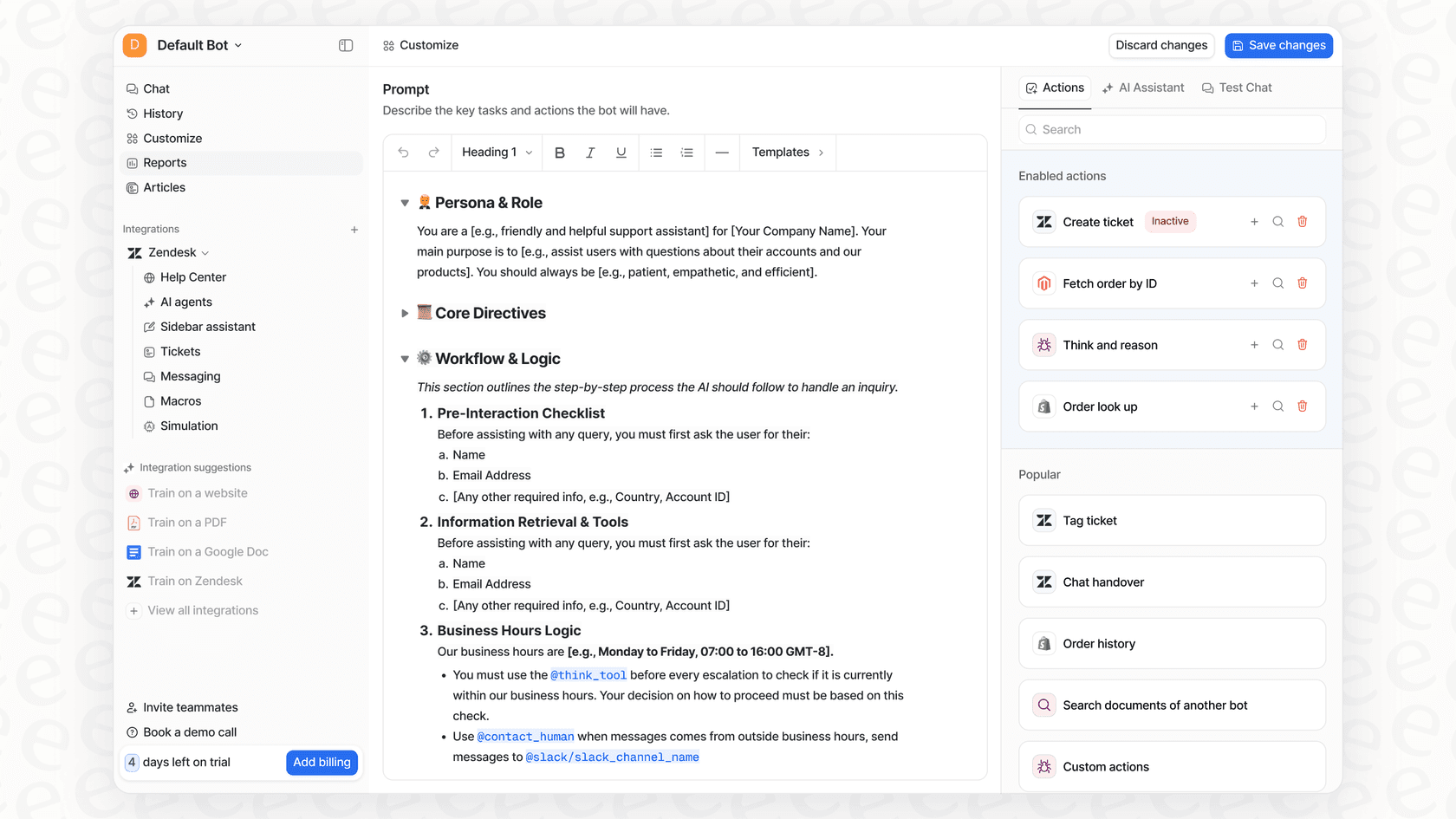
Define the personality: You can use a prompt editor in eesel AI to ensure the AI's tone aligns perfectly with your brand.
-
Set boundaries: You can specify which knowledge sources to use for different scenarios, keeping the AI focused on the most relevant information.
-
Enable automated actions: You can configure your AI to perform helpful tasks, such as:
- Checking order status in Shopify.
- Tagging a new Zendesk ticket automatically.
- Routing complex conversations to the right human agent.
This provides a flexible workflow where you are in complete control of how the AI interacts with your ticketing system.
Step 5: Test and deploy with confidence
Before going live, it’s always best to test your setup to ensure it meets your high standards.
-
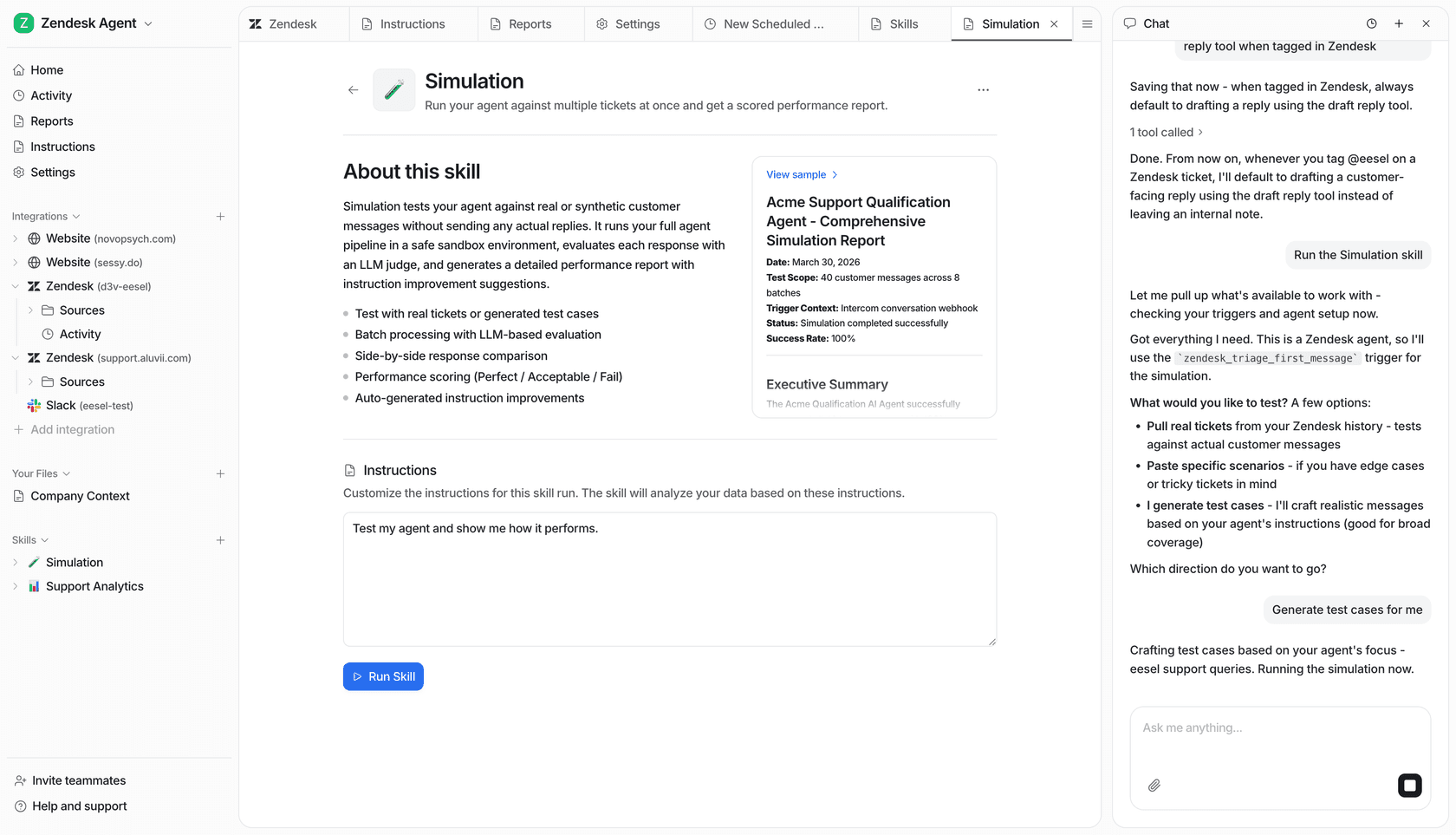
Run a dress rehearsal: Use a simulation mode to see how the AI handles queries. eesel AI's simulation feature lets you run it against past Zendesk tickets to forecast your resolution rate.
-
Identify gaps: The simulation report will highlight any areas where your knowledge base might need more detail before you launch.
-
Roll out gradually: You can start by letting the search handle specific topics, then expand as you see its success.
This ensures your new search layer adds value from the very first day.
Pro tips for maintaining a high-performing search
Once your search layer is built, here are a few tips to keep it at peak performance in 2026.
Pro tip
Use analytics to continuously improve. Your AI's dashboard provides valuable feedback. Pay attention to questions that require more detail and use these insights to update your knowledge base. Tools like eesel AI can even help you draft new articles based on successful resolutions.
Pro tip
Empower your internal team. The unified knowledge you've gathered is a massive asset for your agents. Setting up an internal AI assistant in Slack or Teams gives them instant access to the information they need to provide world-class support.
Stop searching, start answering
Building a semantic search over your Zendesk Knowledge is a powerful way to enhance your customer service ecosystem. When you unify your knowledge sources, you move toward a model where answers are delivered instantly.
This makes your team more efficient and creates a smooth experience for your customers. With modern tools, you can enhance your world-class Zendesk setup in just an afternoon.
An enhanced Zendesk search is just minutes away
Ready to build a search experience that empowers your team? eesel AI integrates seamlessly with Zendesk and your other favorite tools to create a unified AI assistant.
Start your free eesel AI trial today and see how it complements your Zendesk setup.
Frequently asked questions
Why should I bother to build a semantic search over Zendesk Knowledge when Zendesk already offers its own?
Zendesk's native semantic search ranks help center articles and, once you connect them, external content sources. Building a unified layer complements this by adding places Zendesk has no dedicated connector for, such as Slack, and by giving you one assistant across every tool.
What specific tools and resources do I need to prepare before I try to build a semantic search over Zendesk Knowledge?
You'll need your Zendesk account, a clear understanding of where your team's knowledge is located (e.g., wikis, Google Docs, Slack), and a no-code AI platform like eesel AI to act as a central connector.
How much time should I expect to invest to build a semantic search over Zendesk Knowledge and get it operational?
With a no-code AI platform, the process of integrating your knowledge sources and configuring your AI can be done surprisingly quickly. Many users can get it up and running in a matter of minutes or an afternoon.
What's the main advantage of taking the time to build a semantic search over Zendesk Knowledge compared to just using Zendesk's default features?
The main advantage is the ability to unify *all* your knowledge sources alongside Zendesk Knowledge. This enhances your ecosystem, allowing the AI to pull answers from across your entire knowledge stack, leading to excellent self-service and efficient ticket management.
How can I ensure the answers provided by the new system are accurate after I build a semantic search over Zendesk Knowledge?
The blog emphasizes thorough testing using a simulation mode against past tickets before deployment. Additionally, configuring boundaries for your AI and continuously using analytics to identify and fill knowledge gaps ensures ongoing accuracy.
Can my internal support agents also benefit if I decide to build a semantic search over Zendesk Knowledge for customers?
Absolutely. The unified knowledge base created for customers is equally valuable for internal teams. You can set up an AI assistant in tools like Slack or Teams to give agents instant access to answers, improving efficiency and supporting internal collaboration.