


I would start a HubSpot AI rollout with one question: what should the agent be allowed to do on the first ticket? A useful draft and an automatically sent reply are different outcomes. So are reading a help article and searching your customer database.
This guide walks through an eesel support pilot you can prepare from the terminal, with HubSpot's native customer agent as another setup option. It describes proposed tests, not a completed production deployment.
First, choose the route
HubSpot's customer agent setup begins under Service > Customer Agent. You name the agent, choose its personality and content, configure permissions and actions, then test it. Content can include HubSpot material and external public URLs, so it is inaccurate to describe the native option as limited to content inside HubSpot.
The setup requires customer-agent editor permissions and an assigned seat. Check the subscriptions and credits listed for your account. The native preview offers source and trigger insights; use those to inspect an answer before deployment.
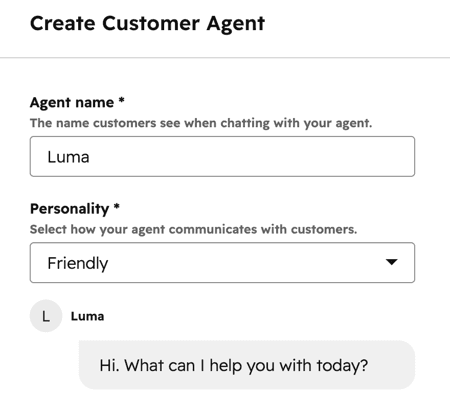
HubSpot's channel deployment guide lets you configure working hours, coverage, and handoff. Save as a draft until those settings are reviewed. Turning off new assignment does not immediately stop work in existing conversations, so include ongoing threads in a rollback check. If the account's credits run out, the agent stops being assigned new conversations on every connected channel until the reset date or a top-up; the published rate is 50 credits per resolved conversation.
The rest of this walkthrough uses eesel. Its HubSpot integration brings an AI support teammate into the existing inbox, with knowledge and actions configured in eesel. Using eesel CLI does not edit HubSpot's native customer-agent settings.
Step 1: Pick a task and its review boundary
Start with a support question whose answer your team can check against an approved policy. For example, a customer asks what information to provide when a course publication is stuck. The first job can be to draft a troubleshooting response, not to modify the course or promise a completion time.
Do not classify password resets or order updates as inherently low-risk. They can require identity checks, current data, or actions that affect an account. Evaluate the requested operation, not just the topic's familiarity.
| First-pilot decision | Example boundary |
|---|---|
| Topic | Troubleshooting a reported publishing delay |
| Knowledge | Current publishing guide and escalation policy |
| Output | Internal comment for a support agent to review |
| Excluded work | Customer sending, account changes, unsupported deadlines |
| Stop condition | Missing source, unclear identity, or a request outside the pilot |
Use a dedicated test inbox or conversation with fictional customer details. Document what success means before creating the automation: the right event runs, the draft cites the right policy, and no customer reply is sent.
Step 2: Inspect your HubSpot teammate through eesel CLI
The eesel CLI operates the same teammate and workspace as the dashboard. JSON output lets a script or coding agent such as Claude Code, Cursor, or Codex collect configuration evidence instead of relying on screenshots alone.
With Node.js 18.17 or newer:
npx @eesel/cli login
npx @eesel/cli whoami
npx @eesel/cli agents
npx @eesel/cli integrations --agent TEST_AGENT_ID
npx @eesel/cli status --agent TEST_AGENT_ID
npx @eesel/cli instructions --agent TEST_AGENT_ID
npx @eesel/cli automations --agent TEST_AGENT_ID
Replace TEST_AGENT_ID with your intended teammate. Selecting it does not isolate it from the connected workspace. Check existing automations and action permissions before connecting HubSpot or running a test chat.
A useful coding-agent brief is: inspect the selected teammate's HubSpot connection and standing instructions, identify missing knowledge and enabled writes, and propose a pilot without changing settings. Ask it to stop for approval before connecting accounts, importing data, running billed chats, or enabling an automation.
Step 3: Connect HubSpot with the data scope understood
Before authorization, read the HubSpot integration guide. Connection starts indexing a batch of recently closed tickets and copying permitted CRM records. Do not approve a production portal merely to see what the setup screen looks like.
If the integration is absent and the data access is approved:
npx @eesel/cli integrations connect hubspot --agent TEST_AGENT_ID
A person follows the authorization link, selects the right HubSpot account, and reviews the requested permissions. They need App Marketplace Access; super admins already have it. Browser authorization is not something to replace by pasting a password into a coding-agent prompt.
The integration can read HubSpot knowledge-base articles natively, including non-public content. Add outside help content through the Website integration separately. HubSpot message templates are not synced; add an approved template as a file or put the relevant guidance in instructions.
There are two distinct CRM checks. The account grants the access that allows records to be copied. Then Deals, Contacts, and Companies must be enabled in that agent's knowledge settings before it can search those copies. Leave unnecessary sources off, and separately review live CRM lookup actions and what the requester is allowed to learn.
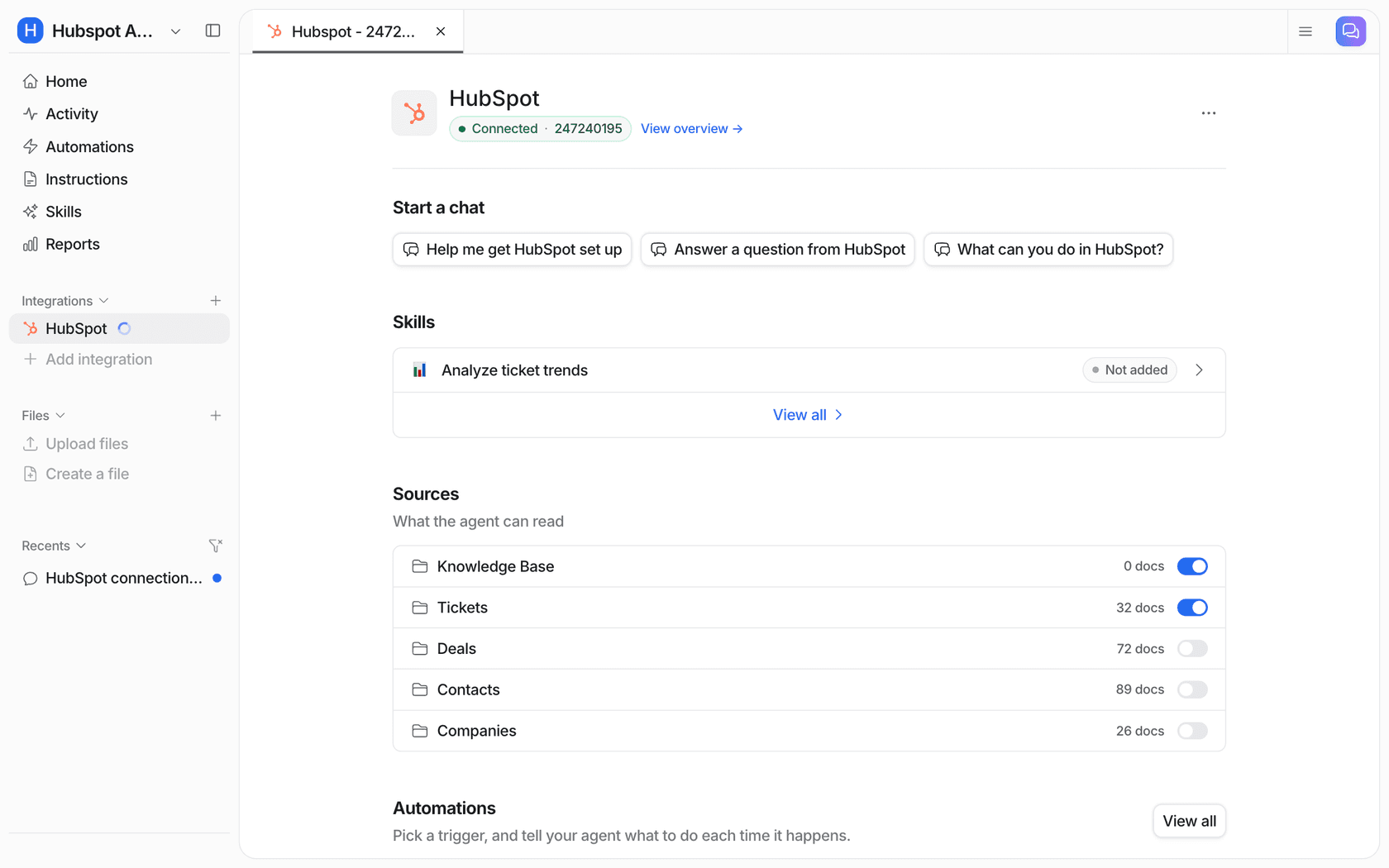
A customer asking about their own issue is not authorization to disclose another contact's details or a deal's commercial terms. Keep that distinction explicit in instructions and tests.
After connection, inspect source readiness:
npx @eesel/cli integrations download list --agent TEST_AGENT_ID
npx @eesel/cli status --agent TEST_AGENT_ID
Copied records have a sync date. When the answer depends on a current deal stage or amount, verify the authorized live lookup rather than treating the indexed copy as current.
Step 4: Test the answer before posting a comment
Disable ticket-changing and customer-sending actions in the dashboard before a fictional test, including Add internal comment. The following commands do not disable permissions.
npx @eesel/cli new --name "hubspot-publishing-pilot" --agent TEST_AGENT_ID
npx @eesel/cli chat "Fictional support request: my course still shows Processing two hours after I clicked Publish. What should I check? Use the approved publishing guide to propose a response for human review. Cite the source and identify missing information. Do not inspect real customer records, post a comment, send a message, change a record, or invent a completion time." --agent TEST_AGENT_ID
npx @eesel/cli chat "The customer says a class starts tomorrow, but the request does not establish their account identity or whether a system incident exists. Revise the draft to preserve those uncertainties and explain the approved escalation path. Do not claim that the problem has been fixed." --agent TEST_AGENT_ID
The follow-up continues the same CLI conversation. Check whether urgency changes the wording without turning missing evidence into certainty. If the necessary policy is absent, add or correct the source and test again.
CLI chats are billed work. This is an answer rehearsal, not a simulation of HubSpot's event delivery or a guarantee of future accuracy. The CLI's --dry-run flag previews a server call; it does not score answer quality.
Step 5: Choose the event that really happens
HubSpot distinguishes tickets from conversations. Select the event before creating the eesel automation:
| Event | Use it for | Important distinction |
|---|---|---|
| Customer sends a message | An inbound inbox conversation message | Creating a ticket directly in CRM is not this event |
| New ticket created | A new HubSpot ticket, however created | A CRM-only ticket may have no conversation to reply on |
| @eesel in an inbox comment | Help requested by a teammate | A note on a ticket record does not fire this trigger |
For an on-demand first pilot, configure the Call @eesel in an inbox comment trigger and a narrow AI filter identifying the approved test conversations. Review the scope before requesting creation: chat-created automations are enabled when created. Different trigger events require separate automations.
Keep Reply to customer off. Set Add internal comment to ask for approval, and leave unrelated write actions disabled. Once the configuration is checked, mention @eesel in a new comment on the test conversation in the inbox. Do not put it in a CRM ticket-record note and expect the same result.
A directly created CRM ticket requires its own new-ticket test. Without an attached conversation, there is no customer thread to reply on; eesel can leave findings as an internal comment instead. Do not treat that as a failed email send.
Step 6: Verify the comment and measure the pilot
Inspect the run and any held actions:
npx @eesel/cli activity --agent TEST_AGENT_ID
npx @eesel/cli approvals --agent TEST_AGENT_ID
npx @eesel/cli billing --agent TEST_AGENT_ID
A held comment has not been posted. Review its target and text, approve that one action, then open HubSpot to confirm the internal comment exists. Check that no customer reply or unrelated record change occurred. Avoid Always allow during the pilot: that changes future approval behavior.
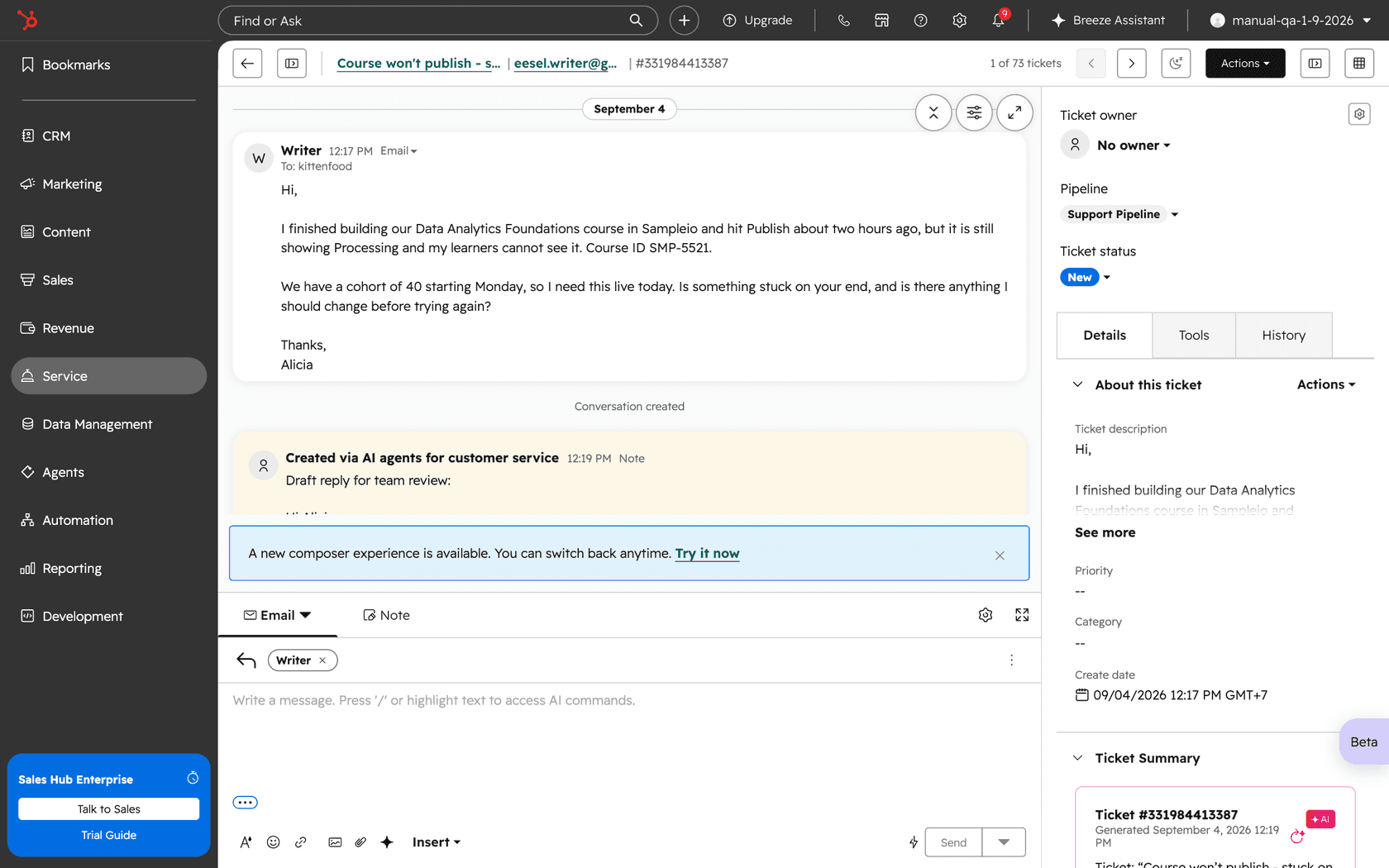
Track correct drafts, required edits, missed triggers, skipped tickets, and unexpected writes. eesel's Activity view records filtered-out tickets, which helps distinguish an intentional skip from a broken connection.
Use actual usage to budget the rollout. eesel is a fixed monthly price sized to volume (from $299/month for 500 credits), and HubSpot's native customer agent uses its own credits. Neither an attractive unit price nor a successful rehearsal establishes the total cost or quality at production volume.
Expand only after the workflow works
The first useful outcome is not “AI connected.” It is a reviewed answer attached to the right conversation, with the right sources and no unintended customer message.
Try eesel to prepare a HubSpot support teammate through the CLI. Keep the initial job narrow, verify its internal comments, and authorize customer replies only after the pilot earns that step.