

What a support agent can do
Zendesk's current setup guide describes AI agents that use a selected knowledge source, personalization, system replies, and channel activation. Beyond an answer from approved content, a team can add procedures, dialogues where available, and authorized actions. That makes a narrow job such as explaining a return policy or checking an order status possible, but it does not make an out-of-date policy or unsafe action reliable.
The practical limit is not the model label. It is whether the agent has a current source, enough context, an appropriate permission, and an escalation route. Start with a job the team can explain in one sentence. Define the source owner, what the agent must not promise, and what happens when it is unsure.
Use the current setup path
In the AI agents workspace, select Create AI agent, choose the channel, select a brand and knowledge base, and optionally add a web crawler. Zendesk requires a connected knowledge source before you continue. Then set a factual business profile, tone, language, and system replies. Choose Save and close to finish configuration later, or Go to activation only after the review is complete.
Each new agent is single-channel. A team that supports customers in email and messaging should plan separate agents and separate tests. Do not assume a successful chat answer proves the email or web-form experience.
Evaluate cost and quality together
Zendesk's packaging and usage terms can vary by account. Ask for the plan entitlement, included AI usage, the definition of a billable resolution, and any usage overage in writing. Also budget for work outside the license: keeping content current, approving actions, reviewing failures, and maintaining several channel agents.
Use a small test set made from recent, safely handled tickets. Include a routine question, missing information, a policy edge case, a human request, and an action failure. For each case, record the expected outcome first. Then check the customer reply, source, action record, ticket state, and human destination. Zendesk QA can turn those checks into scorecards and sampled reviews.
Use Claude Code to inspect an eesel support teammate
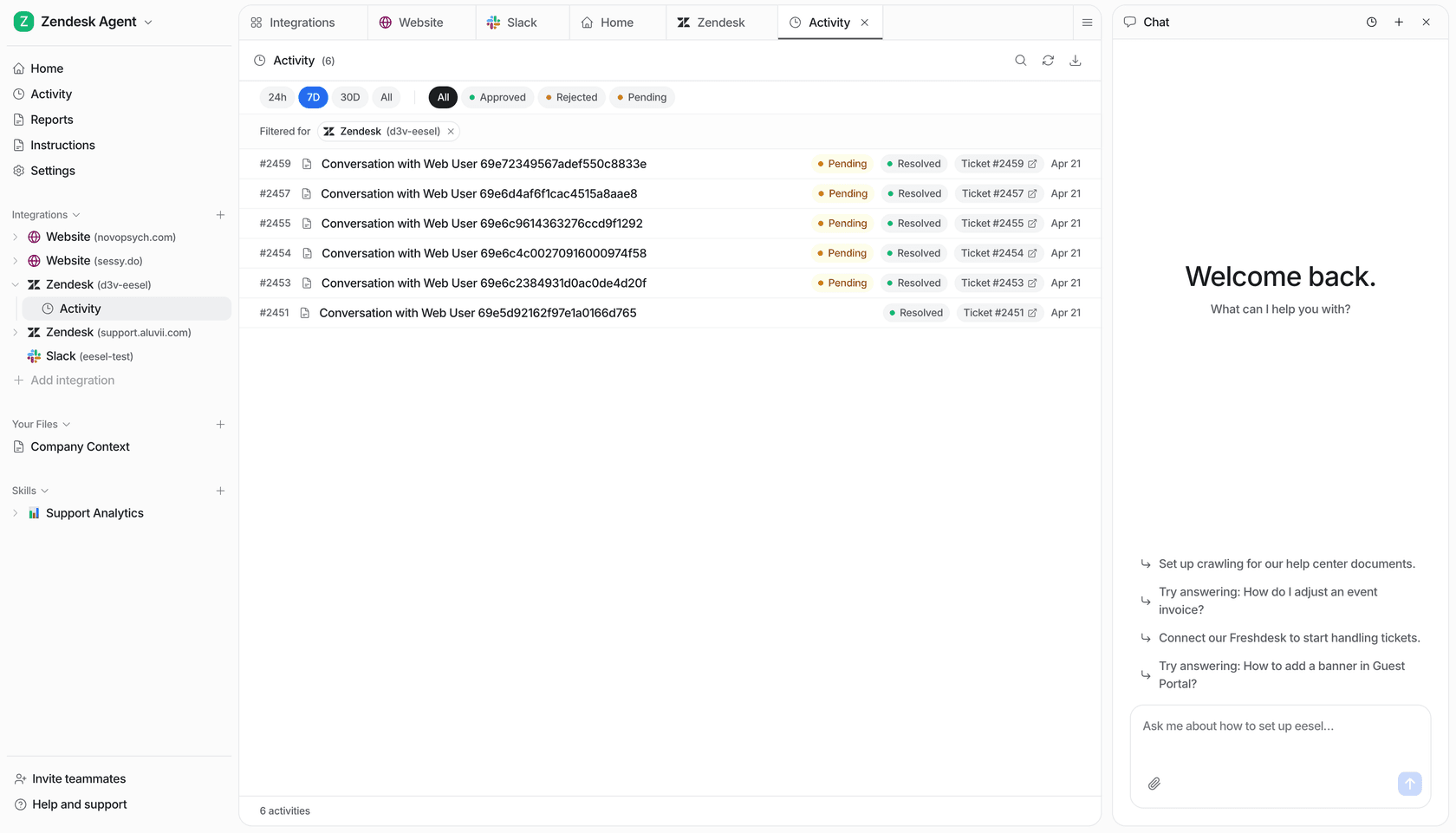
eesel can work as an AI helpdesk teammate in Zendesk. Its CLI lets a support lead, script, Claude Code, Codex, or Cursor operate that same teammate and workspace from a terminal. A useful first assignment is to find a gap between the return policy and the teammate's standing instructions.
Ask Claude Code to read the connected-source list and instructions, then propose a change without applying it. With Node.js 18.17+, these documented commands return JSON it can inspect:
npx @eesel/cli whoami
npx @eesel/cli integrations --agent zendesk-support
npx @eesel/cli instructions --agent zendesk-support
Replace the agent name with your existing teammate's name or ID. The workspace owner must approve access to the returned content. Check source readiness through status; a connection is not proof that its content has downloaded.
For example, if the approved policy accepts unopened returns within 30 days, ask the coding agent to identify what the teammate should do with an opened item after 45 days. Its proposal should name the policy, flag any missing exception rule, and require a human decision instead of inventing eligibility. If it cannot read a current policy, that missing source is the next task—not a reason to write a rule from memory.
After review, an owner can approve a specific instruction edit. Use instructions --help for the write syntax and --dry-run where supported to preview the server call before applying it. Check the resulting instructions in the CLI or dashboard, then test normal and exception cases in a fresh conversation after reviewing action permissions. Chat is real, billed teammate work, not an isolated simulator. Inspect activity and test the actual Zendesk delivery and handoff separately; held approvals are not a gate on every possible action.
Try a Zendesk AI teammate with a defined job
Use eesel alongside Zendesk when you want to start with one job, approved sources, and a reviewable trail of answers and actions. The dashboard and CLI are two ways to operate the same teammate, not separate agents. Try eesel
Frequently Asked Questions
What are Zendesk AI agents for support?
They are customer-facing AI agents that can answer from connected knowledge, follow configured procedures, and escalate when a case needs a person.
Do Zendesk AI agents use one agent for every channel?
No. Zendesk's new AI agents are single-channel: Messaging is one channel type, while Email includes API and web form channels.
How do I set up a Zendesk AI agent?
Use the current Create AI agent flow, choose a channel, connect approved knowledge, personalize the agent, configure system replies, then save or activate.
What should I check about Zendesk AI pricing?
Confirm the features, included usage, automated-resolution or other usage charges, and commercial terms for your own Zendesk account.