


Let's be honest, it’s hard to imagine work life before Zoom. It’s become the default for pretty much everything, from quick daily stand-ups to massive, company-wide meetings. But as your business grows and your communication needs get a bit more complicated, it’s fair to wonder: is the tool you started with still the best one for the job?
This blog post is a complete Zoom overview for 2026, designed to answer that exact question. We’ll look past the "Join Meeting" button and explore its entire suite of products, unpack its pricing, and get real about what its AI tools can (and can’t) do. Think of this as a guide to figuring out if Zoom’s world, especially its AI, is enough for all your needs, from internal chats to actual customer support.
What is Zoom?
At its heart, Zoom is a tool that connects people using video, audio, chat, and webinars. It blew up because it was so simple and reliable, but it has since grown into a much larger platform called Zoom Workplace. It's basically an all-in-one communication hub used by everyone from tech startups to universities, mostly because it just works.
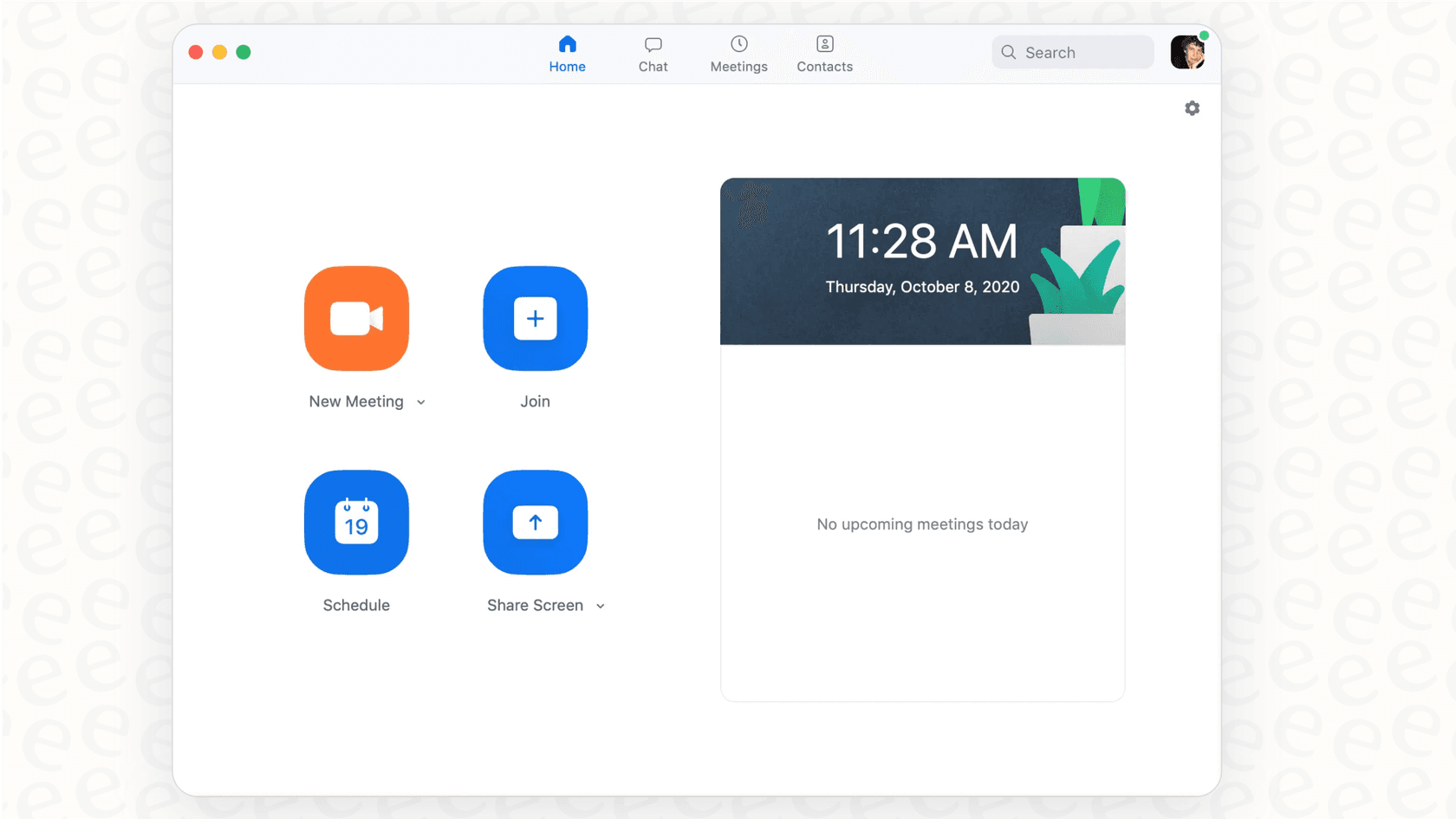
Breaking down the Zoom toolkit
The Zoom you use every day is just one piece of the puzzle. The platform is actually a collection of different tools that handle various parts of business communication. Let's take a look under the hood.
Zoom Meetings: The core collaboration tool
This is the product everyone knows. Zoom Meetings are the foundation, giving you solid HD video and audio, screen sharing, a chat box, and the ability to record everything. It’s designed for those back-and-forth sessions where everyone gets a chance to talk.
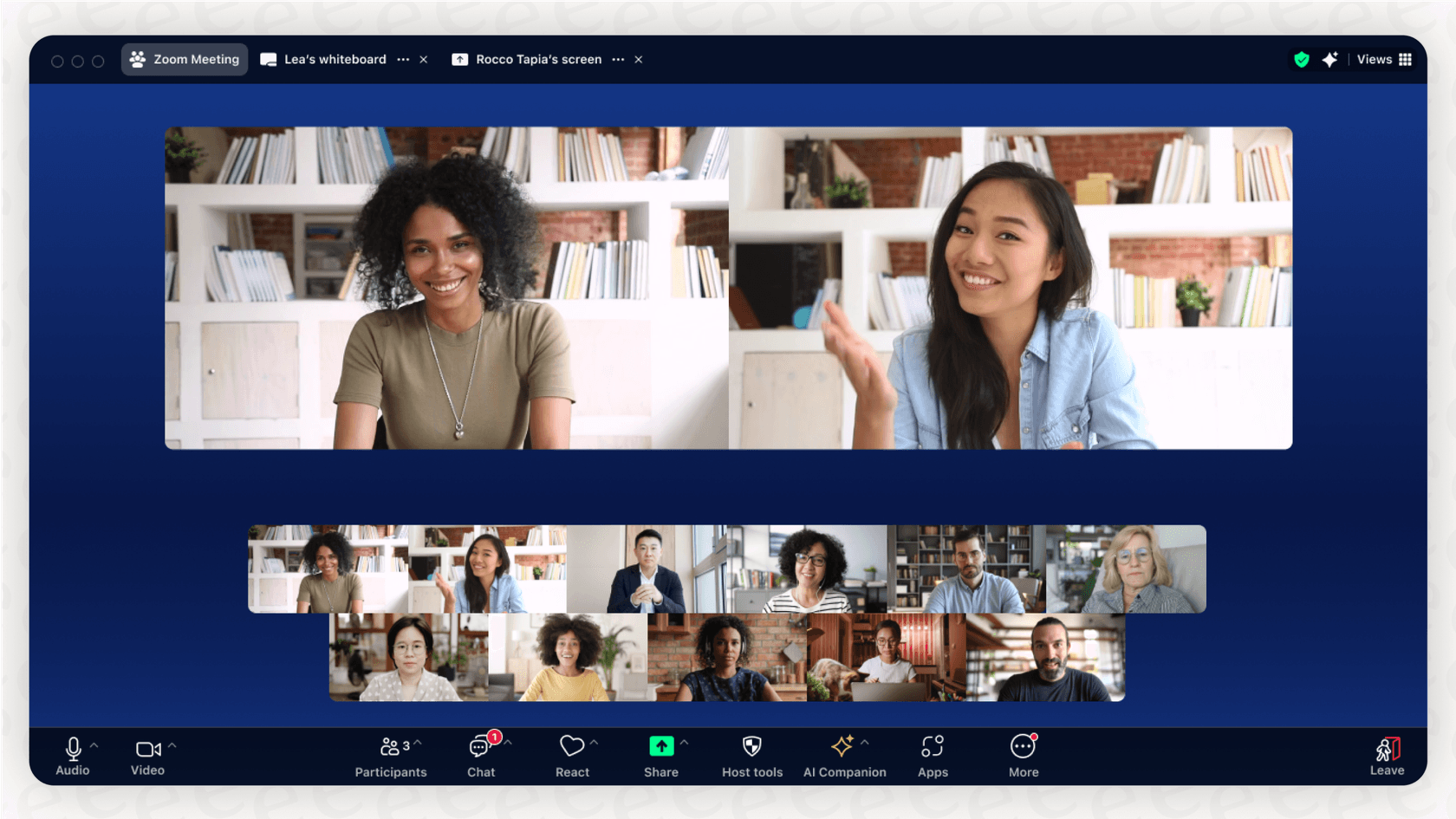
Within Meetings, there are a few other handy features:
-
Zoom Webinars: If Meetings are for collaboration, Webinars are for presenting. They’re built for one person (or a few) to talk to a large audience. You get tools like Q&A, polling, and registration, which are perfect for things like town halls or marketing presentations.
-
Breakout Rooms: This feature is great. It lets you split a big meeting into smaller groups for focused chats and then pull everyone back into the main room when you’re done.
-
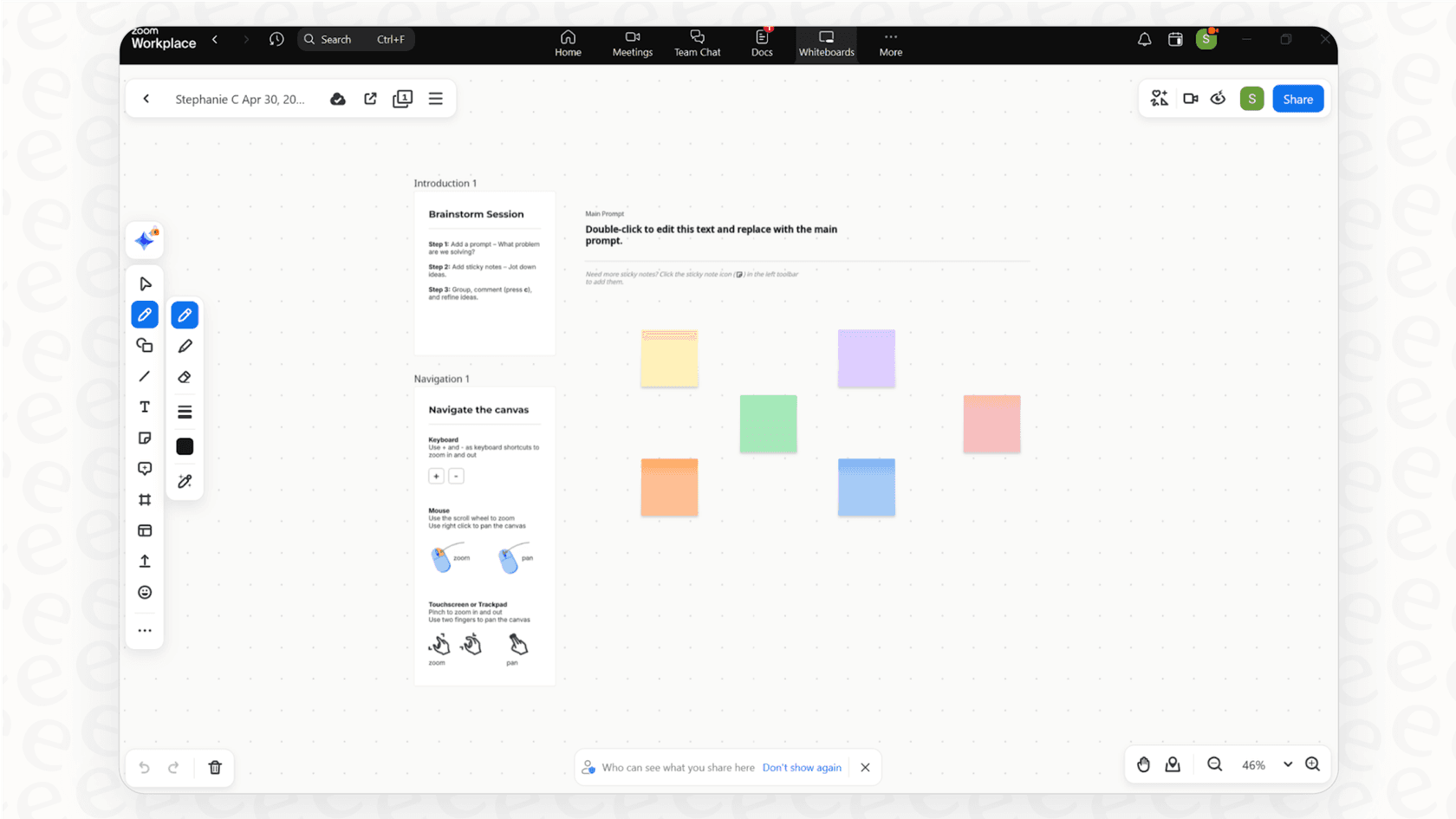
Whiteboards: It’s a digital canvas you can pull up during a meeting. Everyone can jump in to brainstorm, and you can save it to share later.
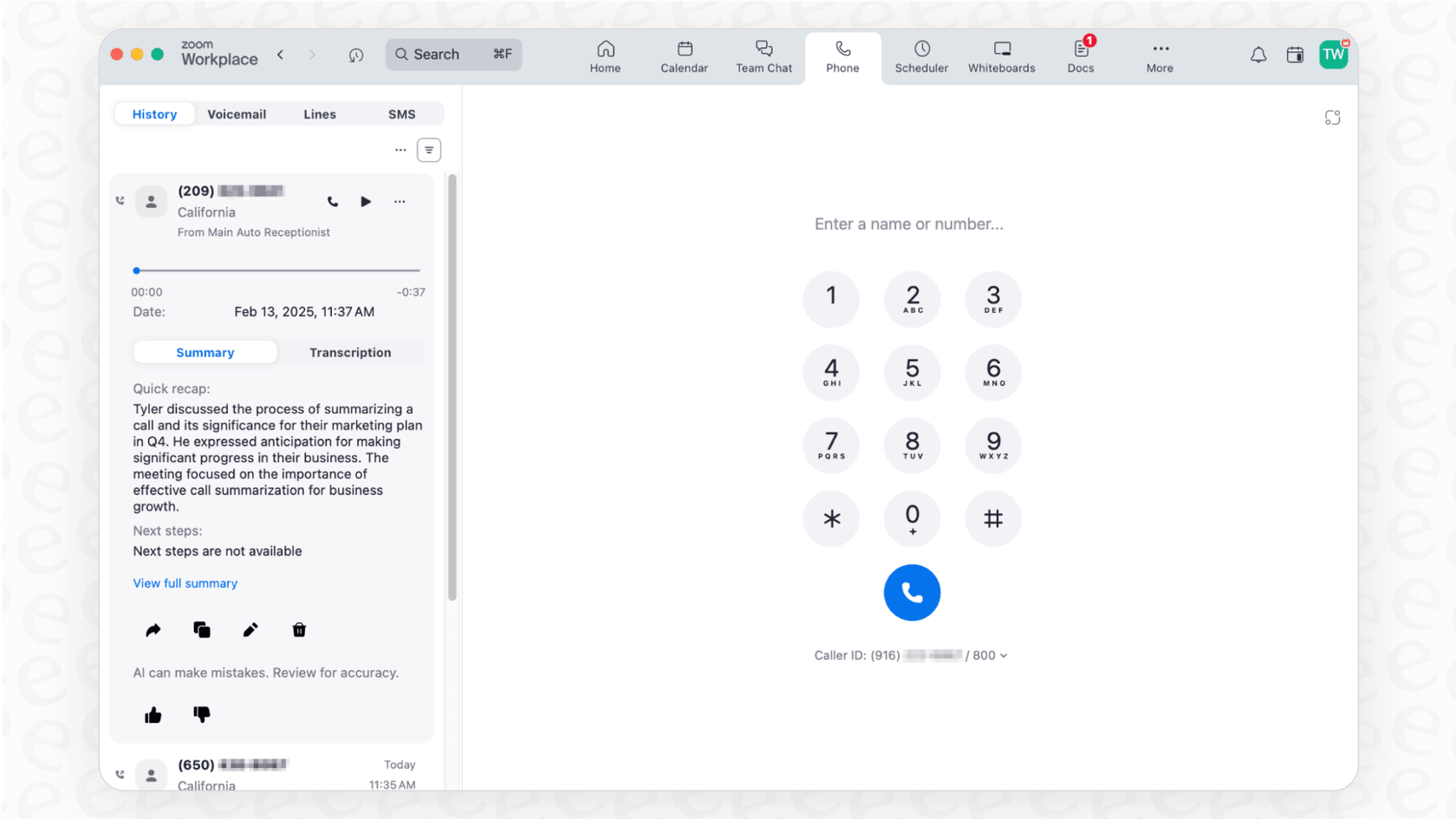
Zoom Phone: Modern business communication
Zoom Phone is a cloud-based phone system that lives right inside the Zoom app you already use. It lets you make and take calls from a business number on your computer or phone. You get all the standard stuff like call routing, voicemail transcription, and call recording. For a lot of companies, it’s a simple way to ditch clunky old office hardware and keep all their communication in one place.
Zoom Rooms for hybrid teams
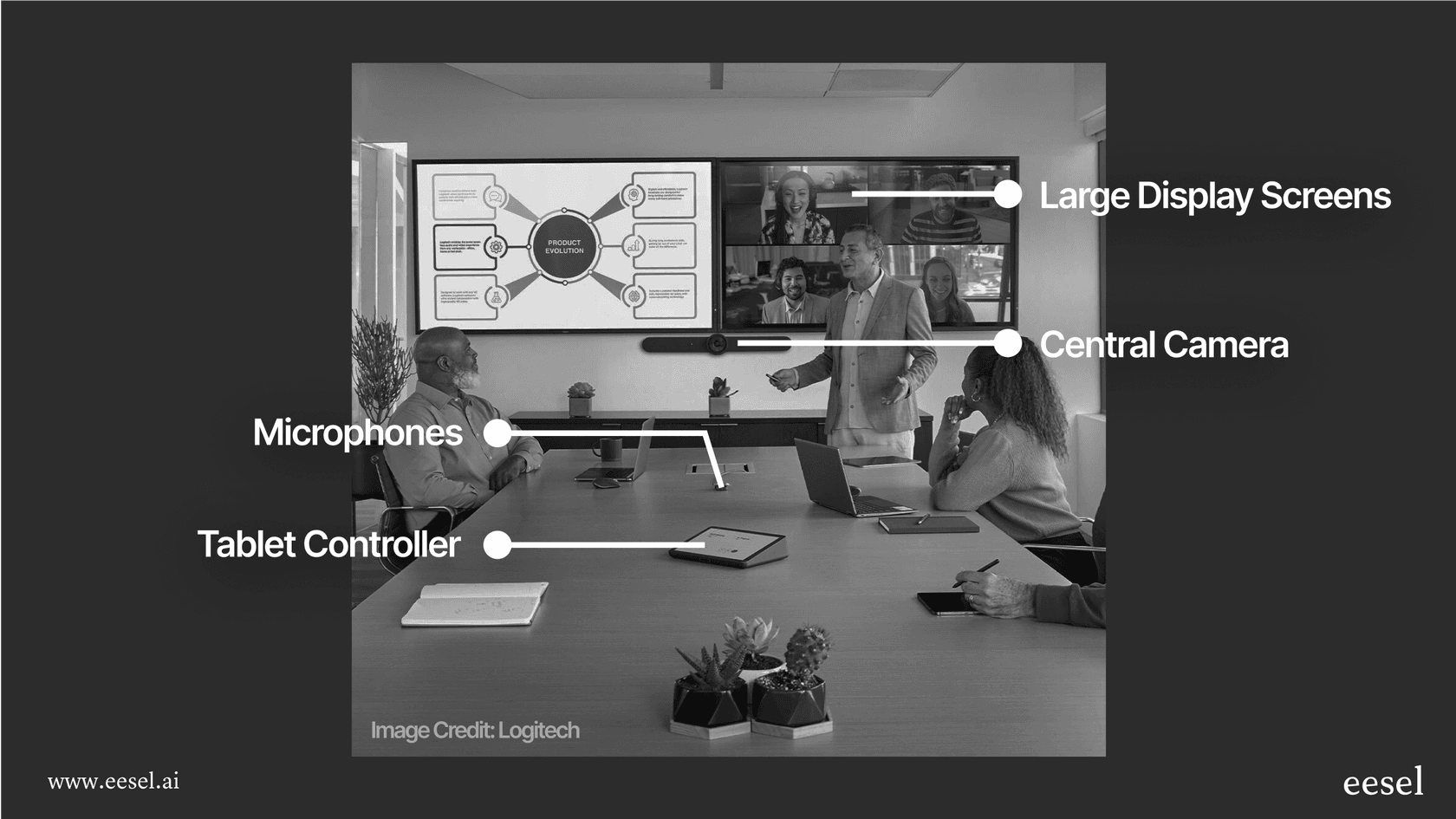
Ever been in a meeting room where the remote folks feel like they're miles away? Zoom Rooms is designed to fix that. It's a hardware and software combo that turns a conference room into a proper hybrid meeting space. With a dedicated computer, a controller, big screens, and certified gear, the goal is to make joining a meeting as simple as one tap, whether you're in the room or at home.
The AI Companion: Capabilities and limits
Zoom’s AI Companion (Zoom now brands it ZoomMate) is the built-in assistant that comes with paid plans, and a free tier with 3 summaries a month sits on the Basic plan. It’s designed to make your work life a little easier, and it does a pretty good job with a few key tasks:
-
Meeting Summaries: Missed a meeting? It can generate a summary so you can get the gist without watching the whole recording.
-
Action Items: It pulls out tasks and next steps that were discussed during the call.
-
Chat & Email Drafting: It can help you write messages in Zoom Team Chat or get started on an email.
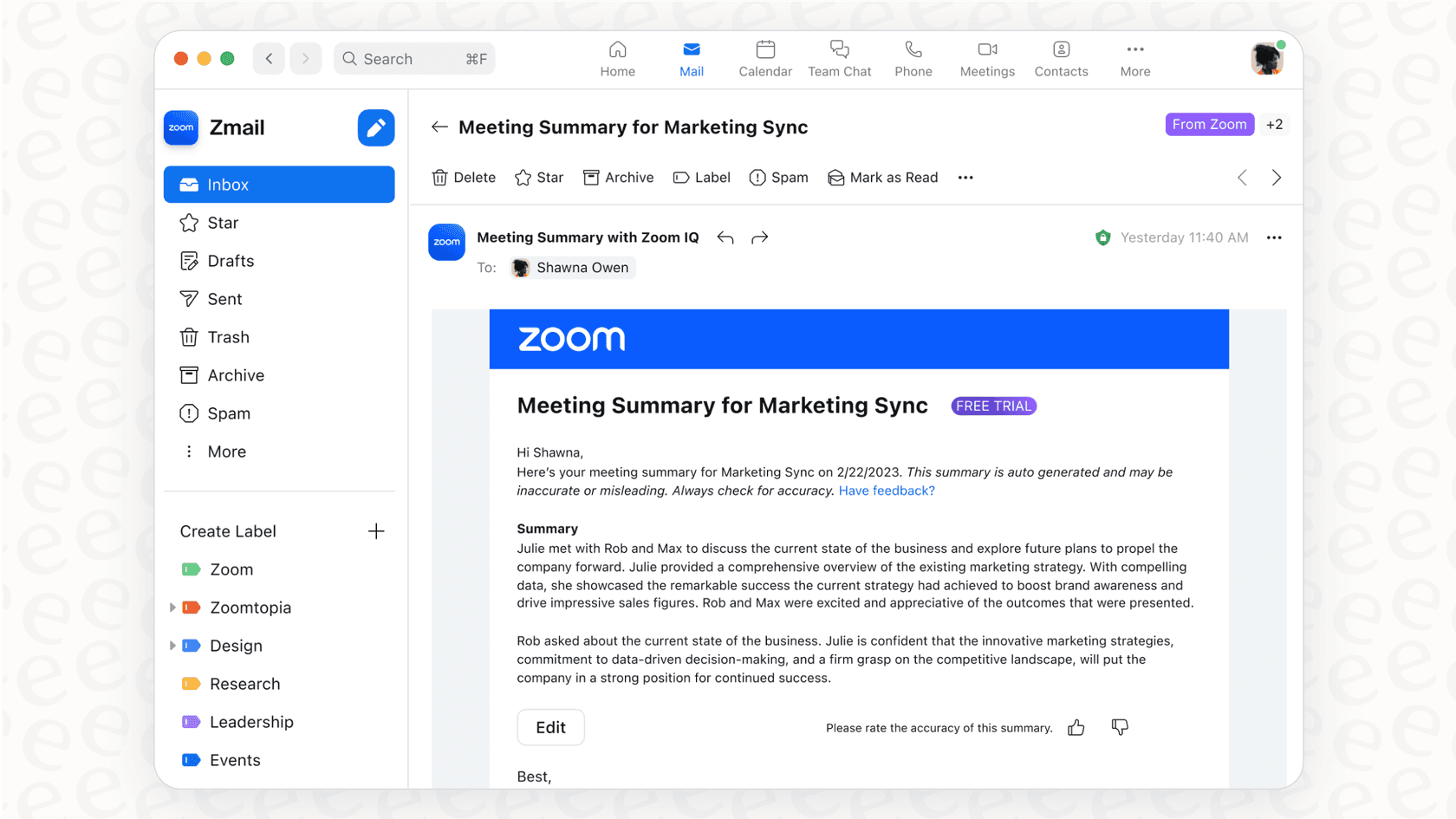
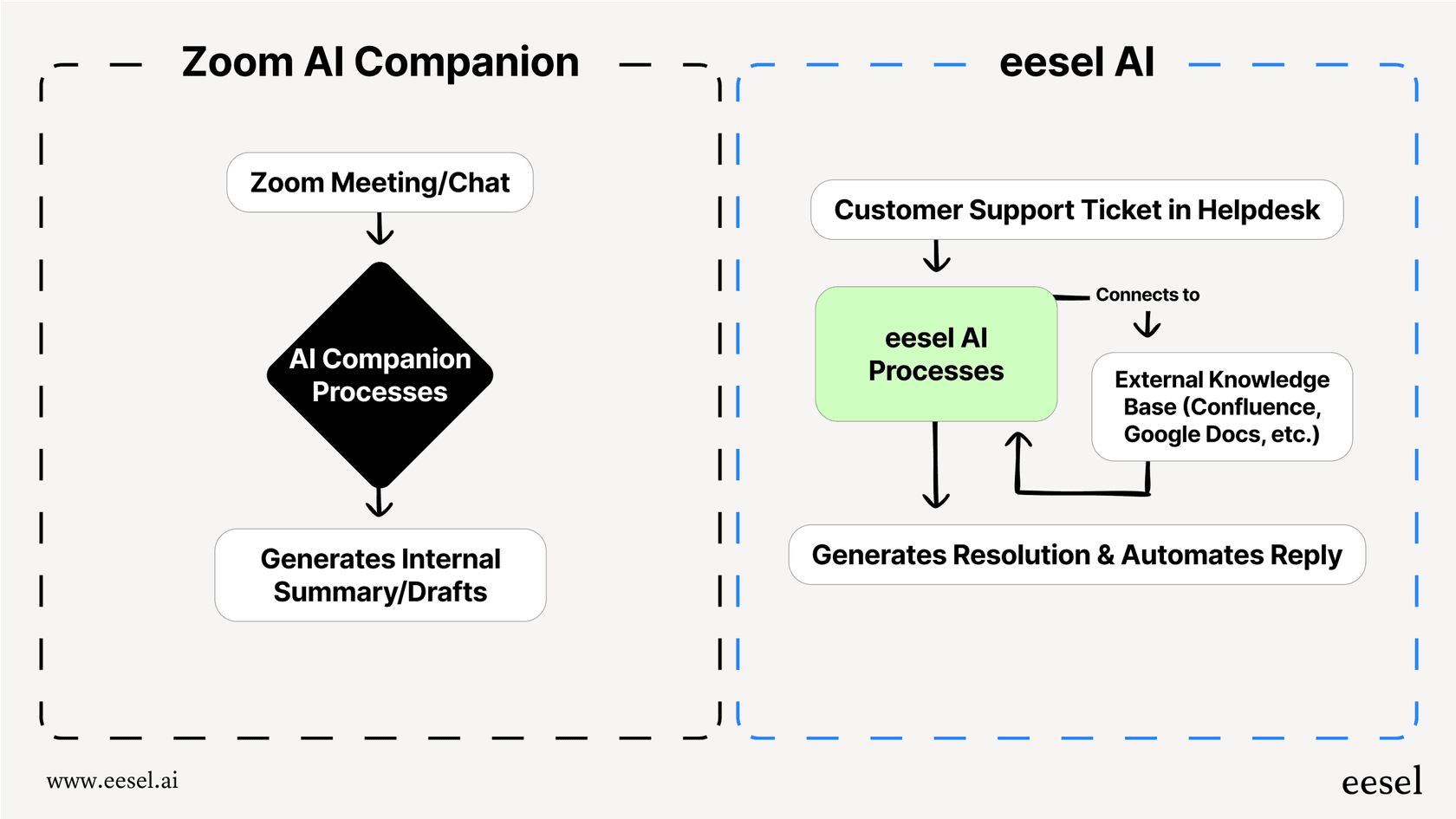
Here’s the thing, though: you need to understand its limits. The AI Companion is a solid productivity booster built around your meetings, chats, and documents. It’s there to make your day better, and its agent and workflow features are aimed at general work like follow-ups and Salesforce updates.
For instance, its context comes mainly from your meetings, chats, and the apps you connect, so your company's real knowledge, like a wiki in Confluence or process guides tucked away in Google Docs, only helps if a connector exists for it. And it isn't positioned for customer support automation: Zoom sells a separate Virtual Agent for self-service support across phone and messaging, and the ZoomMate page doesn't list ticket routing or order checks in Shopify.
While AI Companion is useful for internal recaps, teams that want to automate customer support inside their existing helpdesk usually look at a purpose-built tool like eesel AI. It’s built to plug directly into your helpdesk and connect with all your scattered knowledge sources, giving you real automation that goes way beyond just taking meeting notes.
Zoom pricing and plans
Alright, let's talk money. Zoom's pricing can be a little tricky to navigate, with different tiers and a bunch of add-ons that can make your final bill a surprise. The best place to start is with their main "Workplace" plans.
| Plan | Price (Billed Annually) | Key Features | Best For |
|---|---|---|---|
| Basic | Free | 40-minute group meetings, up to 100 participants, Team Chat. | Individuals or tiny teams just kicking the tires. |
| Pro | $14.16 /user/month | 30-hour meetings, 100 participants, unlimited AI summaries and note-taking, 10 GB cloud storage. | Small teams and professionals who need longer meetings and the basic AI features. |
| Business | $18.33 /user/month | Everything in Pro + 300 participants, unlimited whiteboards, SSO, managed domains. | Small to medium businesses that need more room and better admin controls. |
| Enterprise | Contact Sales | Everything in Business + 1000 participants, unlimited cloud storage, full-featured phone, webinars. | Big companies that need the whole package. |
Just a heads-up: This pricing info is from zoom.us/pricing and could change.
Add-on costs
This is where the budget can get messy. Many of the features we talked about aren't in the base plans and cost extra.
Here are a few common ones:
-
Zoom Rooms: $41.58/month per room (billed annually, hardware not included)
-
Large Meetings: Starts at $50/month to get up to 500 participants
-
Cloud Storage: Starts at $10/month for 30 GB if you need more
-
Webinars: Starts at $83.33/month (billed annually) for 500 attendees
This pick-and-choose model can make it hard to predict your costs, especially as your team grows. It's a different approach from eesel AI, where every tool (AI Agent, Copilot, Triage, Chatbot) and channel is included in one fixed monthly price (from $299/month for 500 credits, one credit per ticket or chat) with no per-seat fee. When you're trying to scale your support, predictable costs are a big deal.
Zoom usage and security
Now that we’ve covered the products and pricing, let's get into how teams are using Zoom and what the platform does to keep things secure.
How teams use Zoom effectively
-
Remote & Hybrid Work: This is Zoom’s home turf. It’s the go-to for daily stand-ups, team huddles, one-on-ones, and all-hands calls that keep distributed teams feeling connected.
-
Sales and Marketing: Sales teams use it for live product demos, while marketing teams run webinars to generate leads and host virtual events.
-
Education: Zoom became essential for virtual classrooms and online tutoring. It basically powered remote learning through the pandemic and beyond.
-
Customer Support: For tricky technical problems, a support agent might hop on a quick Zoom call. It allows them to see what the customer is seeing and walk them through a fix way faster than typing back and forth.
Essential security and privacy features
Remember "Zoombombing"? It was a real headache early on, with strangers crashing meetings. Thankfully, Zoom has seriously stepped up its security game since then and now gives hosts plenty of control.
-
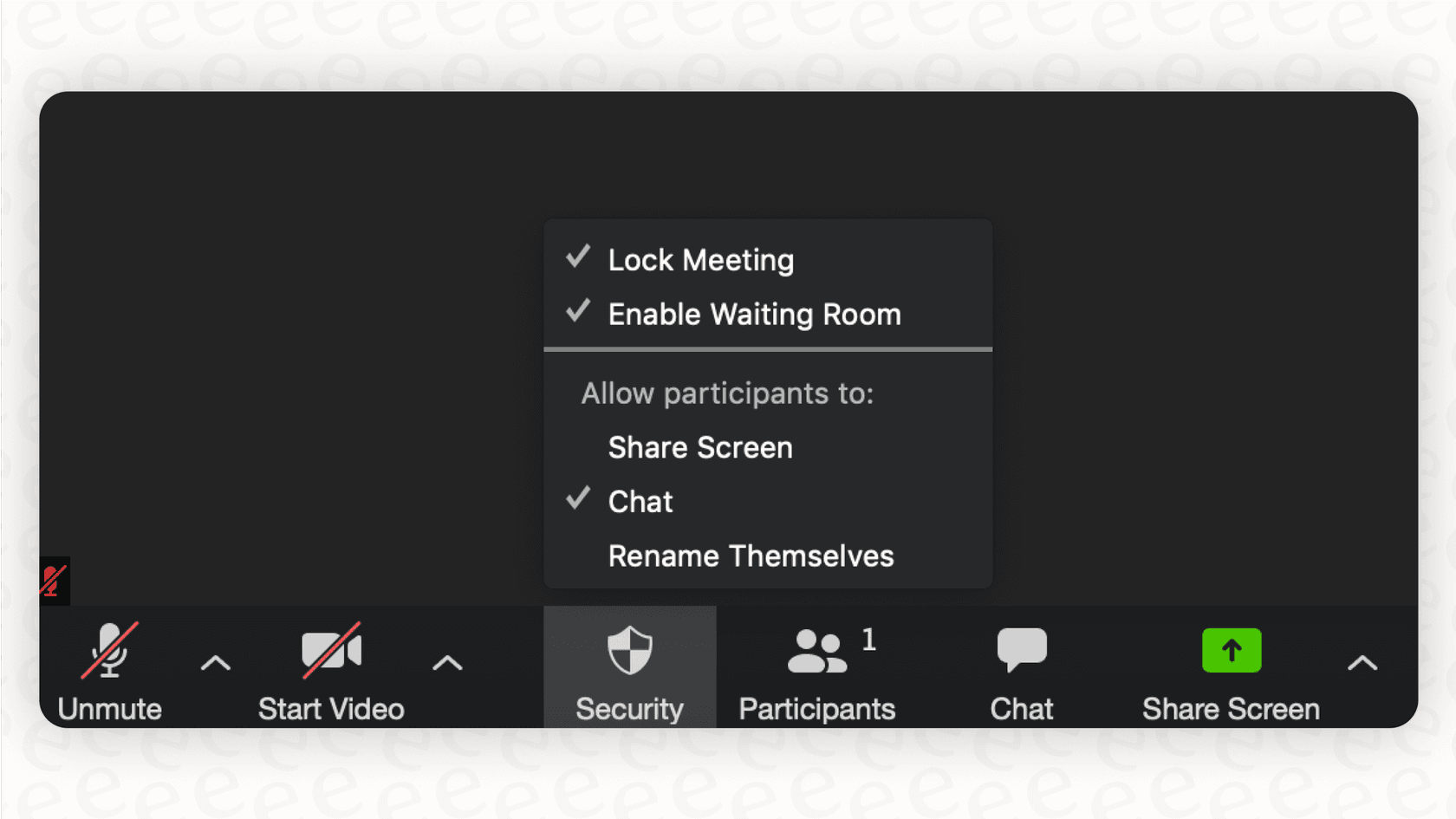
Waiting Room: This works like a virtual bouncer, letting the host see who’s trying to join before letting them in.
-
Passcodes: You can put a password on your meeting, so only people with both the link and the code can get in.
-
Lock Meeting: Once all your expected guests have arrived, you can lock the door behind them so no one else can join.
-
End-to-End Encryption (E2EE): For highly sensitive conversations, E2EE ensures that no one outside the meeting (not even Zoom) can access the content.
Just as Zoom makes meeting security a priority, any AI tool you use has to be built to protect customer data. For example, eesel AI is designed with security as a foundation. Your business data is never used for training general models, and you have options like EU data residency to help you comply with rules like GDPR.
Is Zoom the right platform for you?
So, what's the verdict? Zoom is an excellent communication platform. It’s fantastic at helping teams talk to each other through video, phone, and chat. Its AI Companion is a nice bonus for making internal meetings a bit more productive. If you're looking for a top-tier tool for team collaboration, it’s a great choice.
But it’s worth being clear about where it stops: Zoom's meeting assistant is not a customer support automation tool, and Zoom's own support product is the separate Virtual Agent. Resolving tickets in Zendesk or learning from your whole knowledge base in Confluence is helpdesk work, which is what eesel is built for.
If your goal is to use AI to handle up to 70% of your customer questions automatically, you need a tool that was built for that specific job. eesel AI connects to the tools you already use in minutes, not months. You can bring all your knowledge together, see how it would have performed on past tickets, and launch an AI agent that works right inside your helpdesk.
Ready to see what real support automation can do? Try eesel AI for free.
Frequently asked questions
Can you give me a concise Zoom overview of what Zoom Workplace encompasses, beyond just video meetings?
Zoom Workplace is an all-in-one communication hub that extends beyond simple video calls. It includes Meetings, Phone for cloud-based calling, Rooms for hybrid setups, and the AI Companion for productivity enhancements.
What's a practical Zoom overview of the AI Companion's capabilities and, importantly, its limitations for business use?
The AI Companion generates meeting summaries, identifies action items, and drafts chats/emails within Zoom. However, it is built for internal productivity, and Zoom sells a separate Virtual Agent for customer support workflows.
Could you provide a helpful Zoom overview of the main pricing plans and highlight what features often incur additional costs?
Zoom offers Basic (free), Pro, Business, and Enterprise plans, differing in participant limits and features like AI Companion. Add-ons such as Zoom Rooms, Large Meetings, and extra cloud storage are typically additional costs.
For organizations with hybrid teams, what Zoom overview can you give about how Zoom Rooms specifically enhances meeting experiences?
Zoom Rooms transforms physical conference rooms into integrated hybrid meeting spaces using dedicated hardware and software. It simplifies joining meetings with one-tap access, making remote participants feel more included.
Does this Zoom overview indicate that Zoom's built-in AI is designed for comprehensive customer support automation?
No, the AI Companion is primarily for internal productivity tasks like summarization and action item extraction. Zoom positions its separate Virtual Agent product for customer self-service, so a support team automating inside a helpdesk typically looks at a purpose-built tool.