


You’ve just spent an hour crafting the perfect knowledge base article. It’s clear, it’s concise, and it answers a question that’s been blowing up your support queue. You hit publish, feeling pretty good about yourself.
A few hours later, a colleague pings you for that exact information. "Just search the portal," you say. Their response? "I did. Can't find it."
Sound familiar? You’ve just run into the wonderful world of search indexing.
While ServiceNow is a incredibly powerful platform, its approach to ServiceNow AI Search Indexing can be a bit of a maze, often forcing you to take manual steps to get things working. That delay between creating great content and people actually being able to find it is a huge, and common, source of frustration.
This guide will walk you through what indexing is, how it works in ServiceNow, and explore a much simpler, automated way to manage your searchable knowledge.
What is ServiceNow AI Search Indexing?
In a nutshell, ServiceNow AI Search is the engine that powers the search bar across your employee portals, mobile apps, and virtual agents. But for it to work, it needs to know what content you actually have. That’s where indexing comes in.
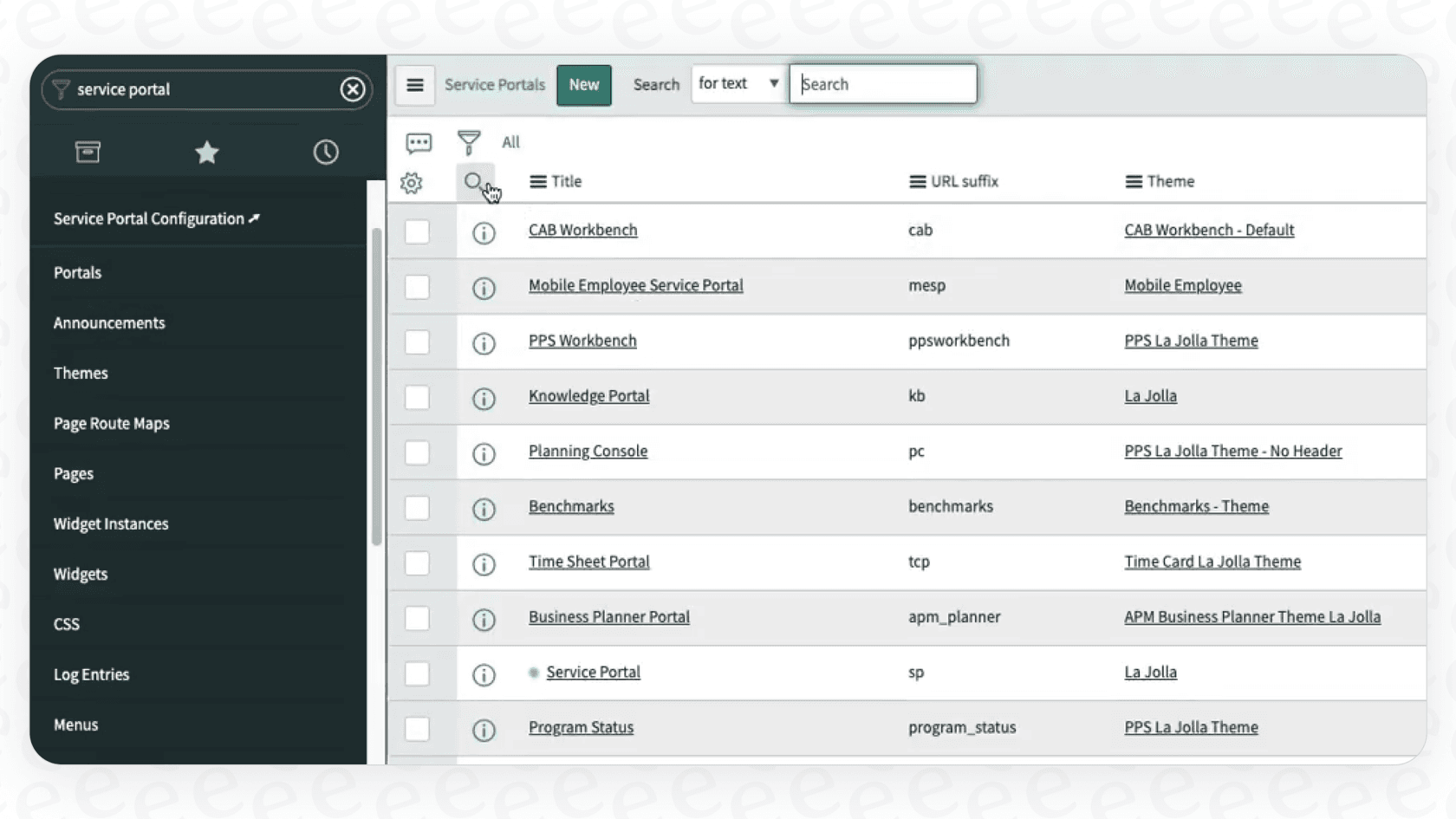
Think of indexing like creating an index for a book. The search engine "reads" all your content, like knowledge articles and service catalog items, and creates a map so it can find things in a snap when someone types in a search. Without that map, your search bar is basically just for decoration.
The main piece of the puzzle you’ll interact with is the Indexed Source. This just tells AI Search what to index. For instance, you’ll have an indexed source for your knowledge articles and another one for your service catalog.
ServiceNow splits these into two types:
-
Internal: For content that lives inside ServiceNow.
-
External: For content from outside sources, which uses an External Content Connector that an admin configures.
The entire search experience, from what’s indexed to how the results look, is built on a series of configurations. And it all starts with getting your sources indexed correctly.
How ServiceNow AI Search Indexing works
Getting your content to show up in a ServiceNow search isn't always as simple as hitting "publish." The process involves a few steps that can feel surprisingly hands-on.
Step 1: Defining your indexed sources
First things first, you have to point ServiceNow to the tables you want to make searchable. This is the foundation of your entire search setup.
It generally looks something like this:
-
You have to dig into "AI Search > AI Search Index > Indexed Sources".
-
From there, you create a new record, give it a name, and pick the table you want to index (like "kb_knowledge" for all your articles).
-
If you have content in tables that are related to your main one, you might also need to set them up as child tables.
You also have to set up filters or retention policies, especially for huge tables. This stops the system from indexing ancient or irrelevant records, but it’s just one more layer of configuration you have to keep an eye on. A source built on the Task table or its child tables must have a retention policy, and attachments such as PDFs with searchable text and Office files can be indexed too.
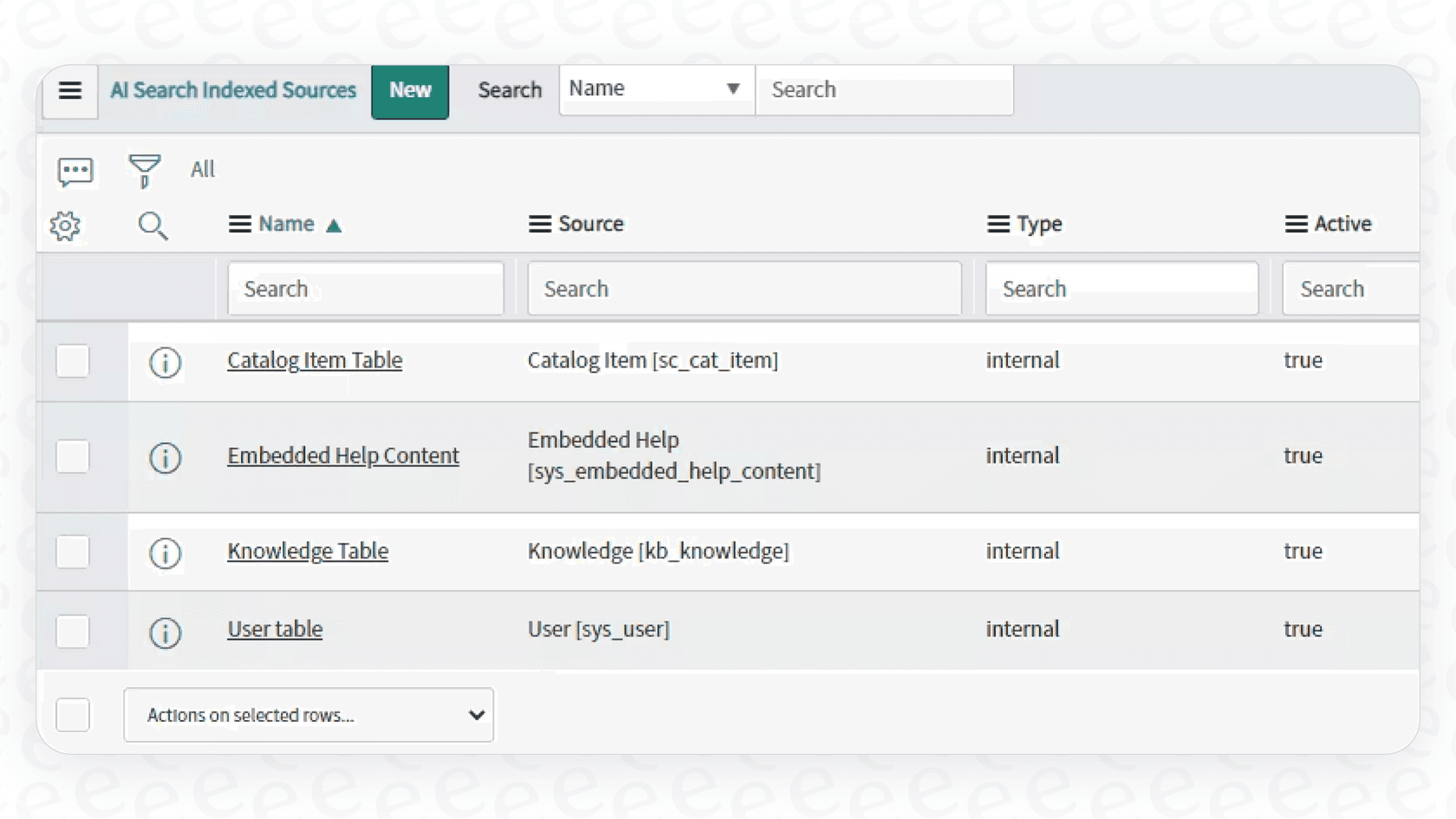
Step 2: The manual reindexing dance
This is where things usually get tricky. ServiceNow's docs say that once a source is defined, AI Search automatically indexes record creates, updates, and deletes, so a new knowledge article should flow through on its own. The manual step comes in when the configuration changes.
After you create an indexed source or change one of its attributes or field settings, ServiceNow needs a full manual reindex before existing records reflect the change.
| What changed | How it gets indexed |
|---|---|
| A record is created, updated, or deleted in an indexed source | Automatically |
| An indexed source attribute or field setting is added, modified, or deleted | Full table reindex |
| Fields on a referenced table (such as Company city on User records) | Reindex the source table |
| Existing records that were not modified | Indexed only during a full table index |
| You might even see a banner message that says, "Topic table changes need to be manually reindexed." That’s the system politely telling you it needs a push. |
To give it that push, you have to:
-
Go back to the "Indexed Sources" list.
-
Find the table that’s giving you trouble.
-
Click the "Index Selected Tables" button and wait.
For a lot of admins, the workflow for fixing content that won't appear in search becomes a frustrating loop: create content, check the portal, see it’s not there, go find the right table in the admin panel, click "Index Selected Tables," wait, and then check again. If it worked, great. If not, the troubleshooting continues. Is it a cache issue? Something else? Who knows.
Step 3: Configuring search sources and profiles
Just getting your content indexed isn't the finish line. To control who can see what, you have to dive into Search Sources and Search Profiles.
-
Search Sources let you create filtered-down versions of your indexed content. For example, you could set up a search source that only shows "Public" knowledge articles, even if your main index includes internal ones.
-
Search Profiles bundle different search sources together to create a specific search experience for a portal. An "IT Portal" profile might be set up to search IT-specific knowledge articles and catalog items, while an "HR Portal" searches something else entirely.
This layered system gives you a lot of control, but it also adds more complexity and more places where a small misconfiguration can break your search.
Common headaches with ServiceNow AI Search Indexing
While ServiceNow is a fantastic do-it-all platform, its search indexing can cause some real problems for the people managing it.
-
It’s complicated and needs constant babysitting. The indexing process isn’t a "set it and forget it" kind of deal. It demands a lot of technical oversight. A quick look at community forums shows even seasoned admins spending hours trying to figure out why new content won’t show up, digging through indexing logs, cache settings, and menu sync options.
-
There’s a delay. After a configuration change, the need to manually reindex creates an annoying lag between the change and people seeing it in results. This can lead to confused employees, more support tickets for issues you’ve already written about, and a general feeling that the knowledge base can’t be trusted.
-
It doesn't always index what you think it does. By default, ServiceNow can be picky about what it indexes. For instance, some admins have found that rich text on certain pages isn't indexed at all, making those pages invisible unless you search for the exact title. Getting that kind of content included often requires custom work or finicky workarounds.
-
Your knowledge is stuck in silos. ServiceNow is great at indexing its own stuff, but what about the knowledge that lives elsewhere? If your team uses Confluence for technical docs or Google Docs for internal policies, connecting those sources goes through External Content Connectors that an admin creates and maintains.
This is where a lot of teams hit a wall. They want a single place to search for everything, but the work involved in managing all these indexing processes turns into a full-time job. Instead of a smooth, modern experience, they end up with a system that feels fragile. It's why many are looking at specialized AI platforms that plug in easily without forcing a huge migration project.
A simpler approach: Instant, unified search with eesel AI
If managing ServiceNow's indexing sounds like a chore, you’re probably wondering if there’s a better way. This is exactly what platforms like eesel AI were built for. It’s powerful, dead simple to set up, and gets you up and running in minutes, not months.
Here’s how eesel AI solves the common indexing headaches:
-
One-click, automatic indexing. Forget navigating confusing admin panels and manually kicking off re-indexes. With eesel AI, you connect your helpdesk (like Zendesk, Freshdesk, or even ServiceNow) and other knowledge sources with a single click. eesel AI keeps everything in sync automatically, so your newest content is always searchable right away.
-
Unify all your knowledge. Don’t just stop at helpdesk articles. eesel AI seamlessly pulls in knowledge from wherever your team keeps it, Confluence, Google Docs, Notion, and over 100 other tools. It creates a single, unified brain for your support AI without any complicated setup. This means all that content, even the rich text on different pages, gets indexed and made available instantly.
-
Totally self-serve. You don’t need to be a dedicated ServiceNow guru to manage your search. The entire eesel AI setup is designed to be self-serve. You can connect your sources, tweak your AI’s personality, and roll it out as a chatbot or agent-assist tool without ever having to talk to a salesperson.
Stop wrestling with ServiceNow AI Search Indexing and start improving your support
An effective, up-to-date search is the backbone of any good self-service strategy. But complex systems can turn ServiceNow AI Search Indexing into a constant battle of configurations, manual updates, and troubleshooting.
The goal should be to have an intelligent search that just works, without needing deep technical knowledge or daily manual nudges.
eesel AI handles all the heavy lifting of indexing and syncing knowledge from all your different sources. This frees you and your team up to focus on what actually matters: creating great content and helping your customers.
Ready for a search that manages itself? Try eesel AI for free and bring all your knowledge together in minutes.
Frequently asked questions
What exactly is ServiceNow AI Search Indexing and why is it crucial for our internal search?
ServiceNow AI Search Indexing is the process where the search engine "reads" your content, such as knowledge articles, and creates a map for quick retrieval. It's crucial because without this index, your search bar cannot effectively find and display relevant information to users, making content undiscoverable.
How often should I expect to perform manual reindexing for ServiceNow AI Search Indexing after publishing new content?
New, updated, and deleted records in a defined source are indexed automatically. A manual full reindex is needed after you add, modify, or delete an indexed source attribute or field setting, so how often you reindex depends on how often you change that configuration.
What are the main frustrations admins experience with ServiceNow AI Search Indexing?
Common frustrations include the process being overly complex, requiring constant oversight, and causing delays between publishing and content becoming searchable. Additionally, it can be particular about what it indexes by default, sometimes missing rich text or requiring custom configurations.
Can ServiceNow AI Search Indexing integrate knowledge from external platforms like Confluence or Google Docs?
While ServiceNow excels at indexing its internal content, external knowledge sources go through External Content Connectors, which ServiceNow documents for sources such as Atlassian Confluence and Microsoft. An admin creates and maintains each connector, which adds to the management work for comprehensive search.
Is there a simpler, more automated way to manage ServiceNow AI Search Indexing for all our knowledge sources?
Yes, platforms like eesel AI offer a simplified approach. They provide one-click, automatic indexing for ServiceNow and over 100 other tools, unifying all your knowledge without manual reindexing or complex configurations, making new content instantly searchable.
What should I do if my new content isn't appearing in search results despite having performed ServiceNow AI Search Indexing?
If content isn't appearing, first ensure the indexed source for that table is correctly configured and doesn't have restrictive filters. You might also need to manually trigger the "Index Selected Tables" button again and check for any caching issues or misconfigurations in search sources or profiles.