Zendesk AI ticket triage: how it works and how to set it up

Rama Adi

Katelin Teen
Last edited September 8, 2026
What "ticket triage" actually means in Zendesk
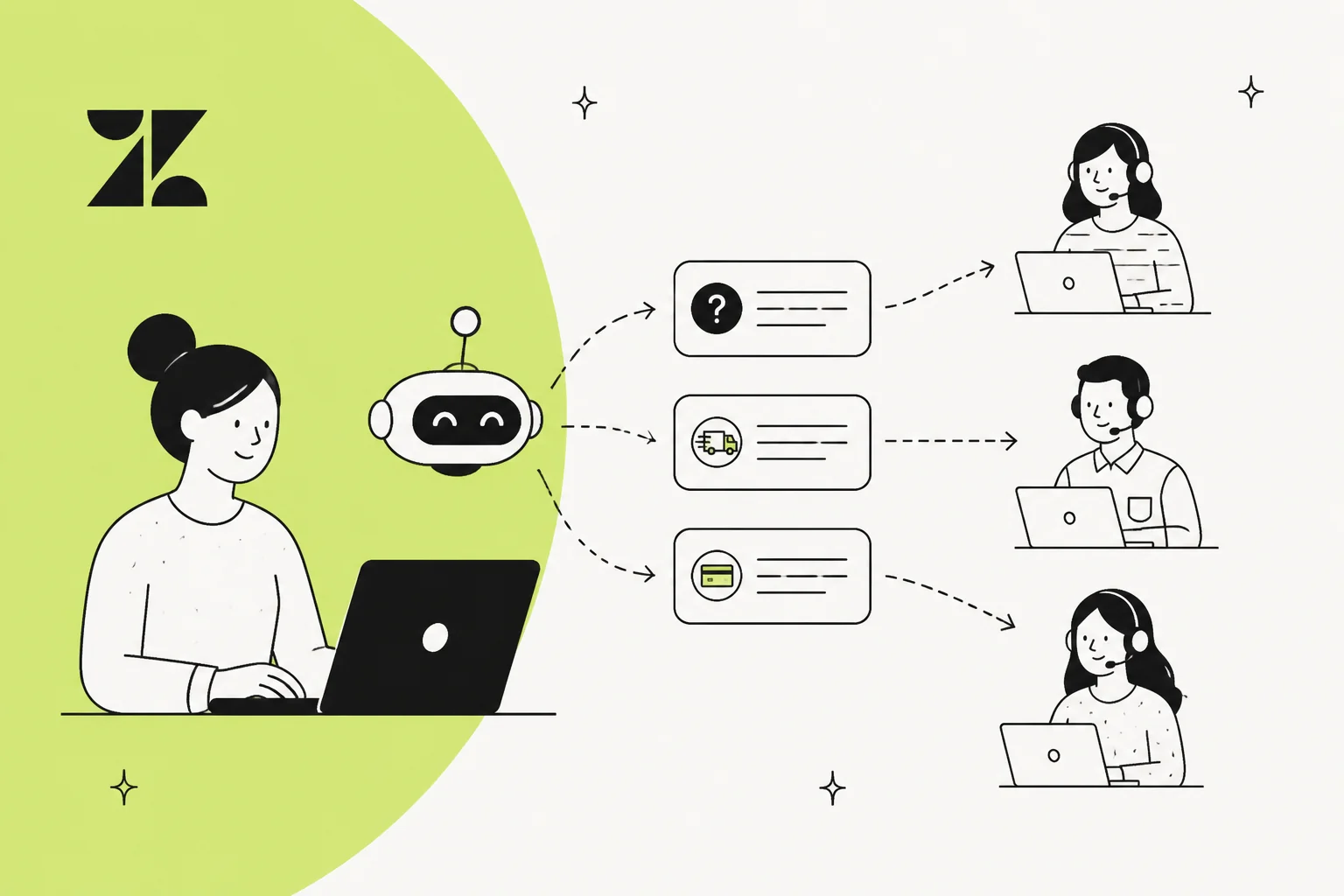
I build integrations at eesel, and I have spent the last three-plus years watching AI get bolted onto live Zendesk queues. So let me be precise about a word that gets thrown around loosely. "Triage" is the sorting step, not the answering step. When a ticket lands, triage decides three things: what is this about, how urgent or upset is the customer, and who should handle it. It does not write the reply.
Zendesk's tool for this used to be a standalone feature called Intelligent Triage. As of 2026 it has been folded into Zendesk Copilot under the name "intelligent classification", which is worth knowing because most older write-ups still call it by the old name and point at help articles that now 404. The mechanics are the same. The billing and packaging moved.
The reason teams care about this step is boring but real: a mis-routed ticket is a slow ticket. A billing question that sits in the general queue for four hours because nobody tagged it is a CSAT hit that no amount of fast replying downstream can undo. Good triage is the cheapest latency you will ever buy back.
How Zendesk's intelligent classification works
Here is the part under the marketing copy. Zendesk's own description, from the Copilot page, is that it will "automatically classify every request by topic, entity, sentiment, and language to power precise routing, automation, and reporting." So four dimensions get read off every incoming ticket:
- Topic is the intent dimension. It answers "what is this about" (a refund, a login problem, a shipping delay).
- Entity is a structured object pulled from the request, like the product or order the ticket concerns.
- Sentiment is the customer's expressed mood on the ticket, which is what lets you fast-track the angry ones.
- Language is the detected language, so a French ticket can be routed to a French-speaking group.
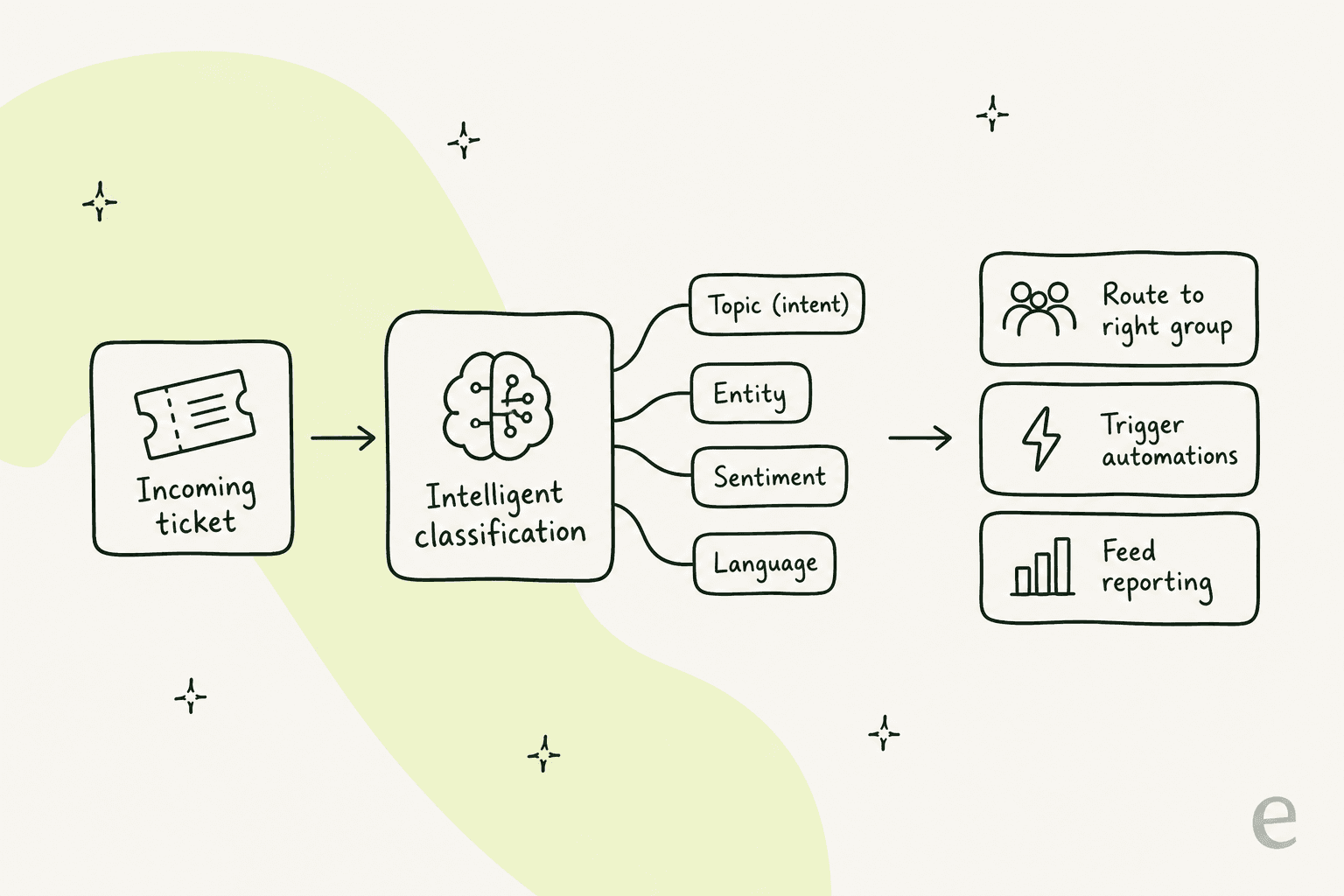
The key mental model: classification is an input layer, not an action. Zendesk reads those four labels and writes them onto the ticket. What happens next is entirely down to the triggers, automations and routing rules you already run. The AI adds the labels; your workflow does the moving. That is a genuinely clean design, and if you have a mature Zendesk instance with good trigger hygiene, it drops in nicely.
What the classifications actually drive
Once a ticket is labelled, those labels become usable conditions everywhere in Zendesk. Three places matter most.
Routing. A trigger can read the topic tag and assign the ticket to a group ("Billing", "Returns"), or read sentiment and bump priority when a customer is clearly upset. Automation. The same tags can fire a macro, set an SLA target, or add a follow-up. Reporting. The classifications flow into Zendesk's analytics, and Copilot ships pre-built dashboards so you can see which topics are eating your volume.

That reporting angle is underrated. Even if you never automate a single reply, a clean topic breakdown of last month's tickets is the fastest way to find out what your team is actually drowning in, and where a help center article would pay for itself.
What Zendesk AI triage costs
This is where you need to read the fine print, because "included" is doing some work in Zendesk's marketing.
| What you get | Where it lives | Cost |
|---|---|---|
| Classification labels only (topic, sentiment, etc.) | Suite Professional | Included in the Suite Professional seat ($115/agent/mo annual) |
| Full Copilot: auto assist + triage dashboard | Copilot add-on | $50 per agent per month (annual) |
| Autonomous AI agent resolutions | AI agents (separate) | $1.50 to $2.00 per automated resolution |
| Quality Assurance (QA) | Separate add-on | Add-on on every tier |
So the labels come with Suite Professional, but Zendesk gates the Copilot experience that most people picture, the in-workspace auto assist and the triage dashboard, behind the $50 add-on. On a 20-agent team that is $1,000 a month for Copilot alone, before you have resolved a single ticket. Resolution is a separate meter again, billed per automated resolution.
I want to be fair here: for a large team already deep in the Zendesk Suite, this is a coherent bundle, and the per-agent model is predictable. It is just not the "AI triage is included" story the pricing page implies at a glance.
Setting up triage in Zendesk: the steps
If you are on a plan with intelligent triage/Copilot, turning it on is straightforward. The exact menu labels shift as Zendesk renames things, but the shape is stable:
- Open Admin Center and find the AI or Copilot section. Enable intelligent classification for the brands you want covered.
- Let it classify. Zendesk reads topic, entity, sentiment and language onto incoming tickets automatically once it is on. There is no per-ticket setup.
- Wire the tags into triggers. This is the real work. Create or edit triggers so a topic label routes to a group, or a negative sentiment bumps priority. The classification is only as useful as the rules that read it.
- Add the tags to your views. Give each team a view filtered by their topic so the queue self-sorts.
- Watch the dashboard. Use the pre-built Copilot triage dashboard to spot which topics are automatable and where routing is leaking.
The thing nobody tells you: steps 3 and 4 are where projects stall. Classification is instant; rebuilding your trigger logic to actually use it is a project, and if your triggers are already a tangled mess (they usually are), you are untangling that first.
Where native triage stops
Here is the limitation I would want a friend to know before they buy. Zendesk's triage is genuinely good at what it does, but what it does is label and route. It hands the ticket to a human. The reply is still someone's job.
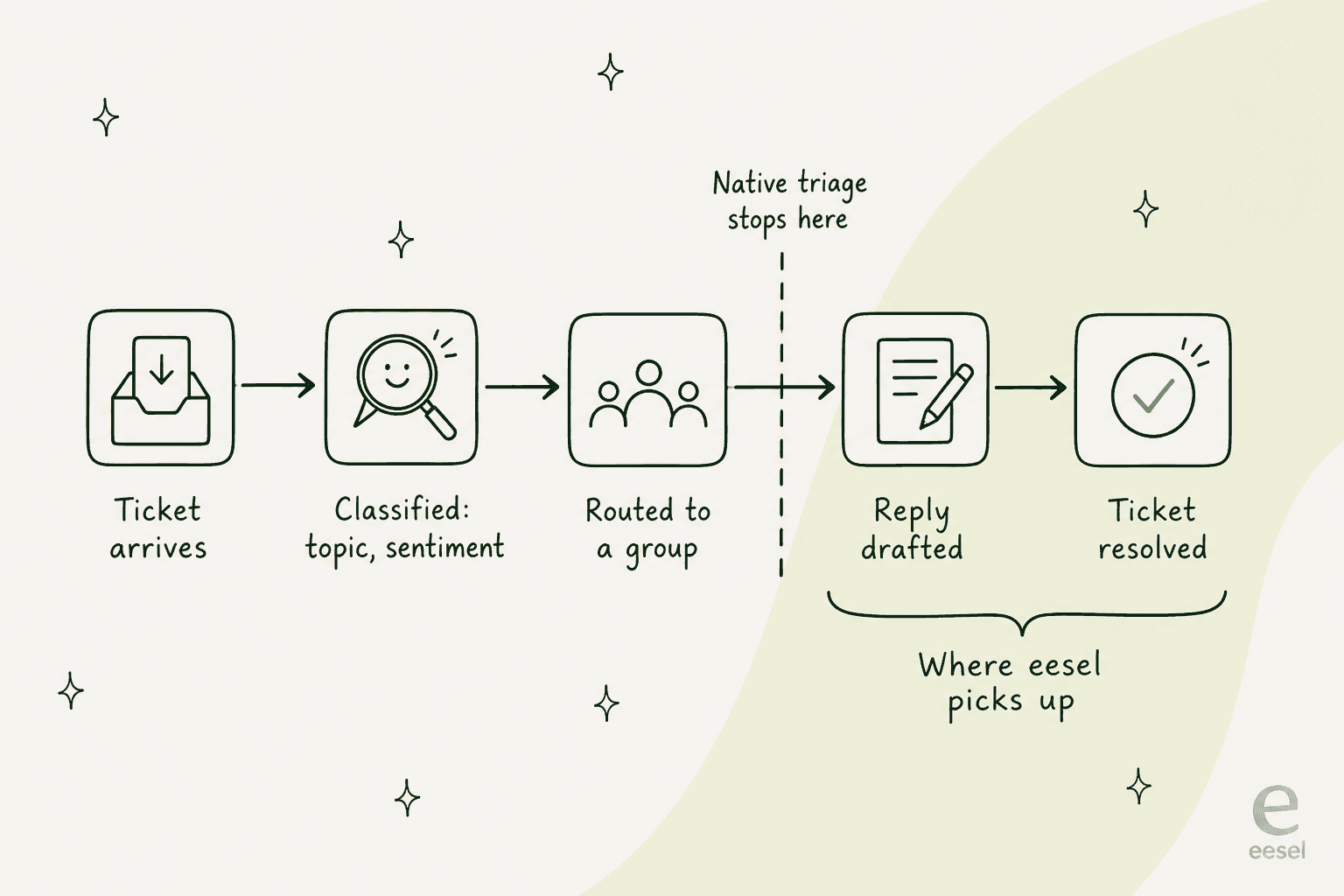
You can add Zendesk's autonomous AI agents to close that gap, and they are capable, but now you are stacking three meters: your seat license, the $50 Copilot add-on for triage, and $1.50 to $2.00 per resolution on top. For a mid-sized team the total-cost-of-ownership math gets real fast.
There is also a testing gap. When I ask teams how they will know the automation works before it touches customers, the honest answer with native Zendesk is "we will find out live". Zendesk's documented testing paths are a test button and routing to a sandbox, not a dry run over your own historical ticket volume. I have watched a confident-sounding bot quietly give wrong answers on live tickets, which is exactly why I care about this.
Layering eesel on Zendesk for triage and resolution
This is the part I actually build, so I will keep it concrete. eesel joins Zendesk as a real AI agent inside the helpdesk, not a separate widget or second inbox. It reads tickets, tags them, assigns to groups, and drafts or sends replies, exactly like a human agent would. Which means it can do the triage step and the resolution step in one pass.
The triage-specific piece is a trigger eesel calls First Customer Message, which fires only on the opening message before any human reply. Point that at Tag and Assign to Group actions and you have a triage agent: it reads intent and language, tags the ticket, and routes it. Point the same agent at a public reply action and it also answers the ones it is confident about.
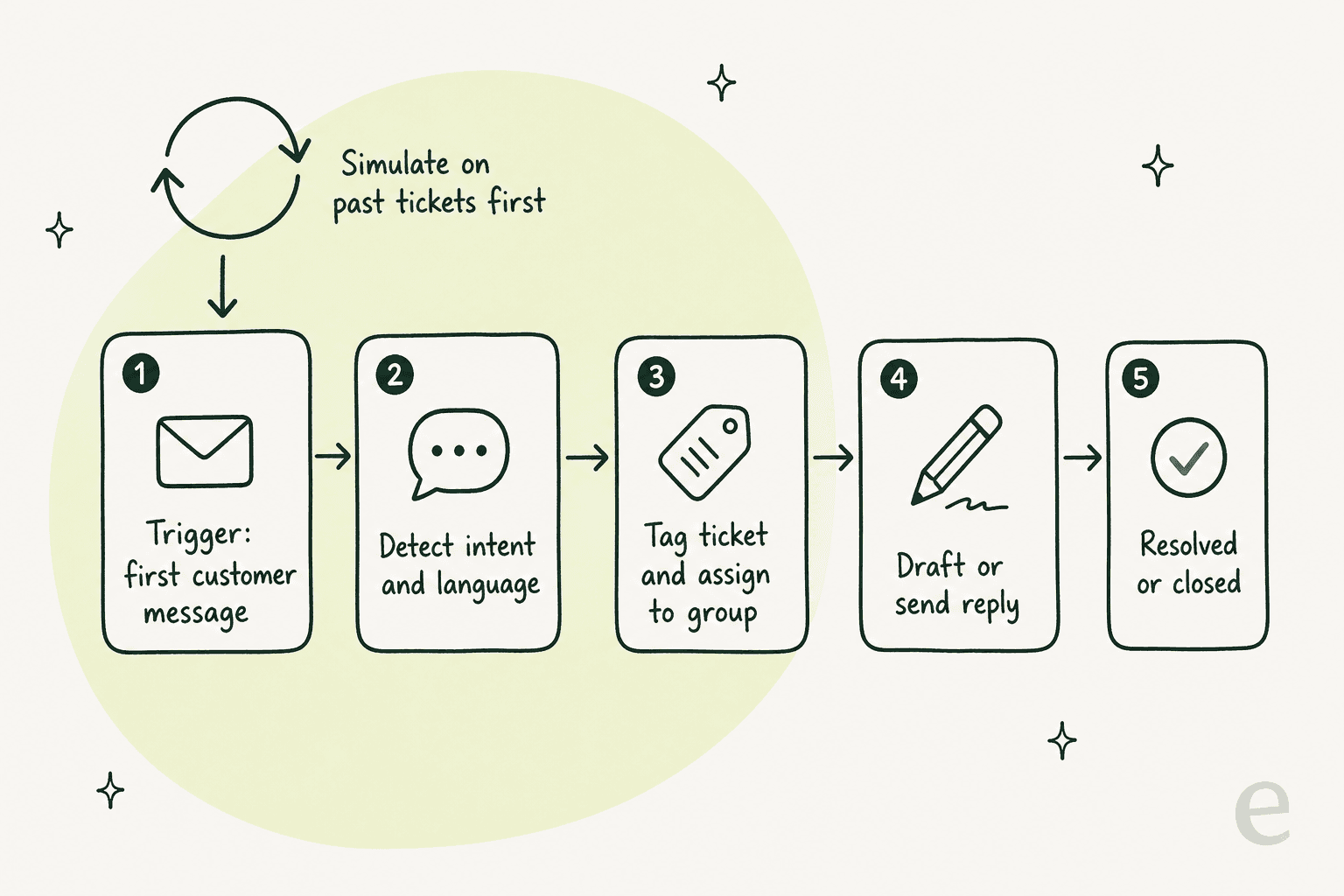
The setup, end to end, is a single session:
- Connect Zendesk via OAuth. Enter your subdomain, authorize, done. It imports your help center, tickets and macros with no manual training.
- Set the trigger and actions. First Customer Message for triage, plus Tag, Assign to Group, and a draft or public reply.
- Write escalation rules in plain language. No rules engine, you just describe when it should hand off to a human.
- Simulate on your past tickets. This is the step native triage does not have. eesel replays the agent against your real historical Zendesk tickets and shows per-topic coverage before anything goes live, so you launch on evidence, not hope.
- Go live gradually. Start in draft-only mode, review for a few days, then switch the easy topics to autonomous.
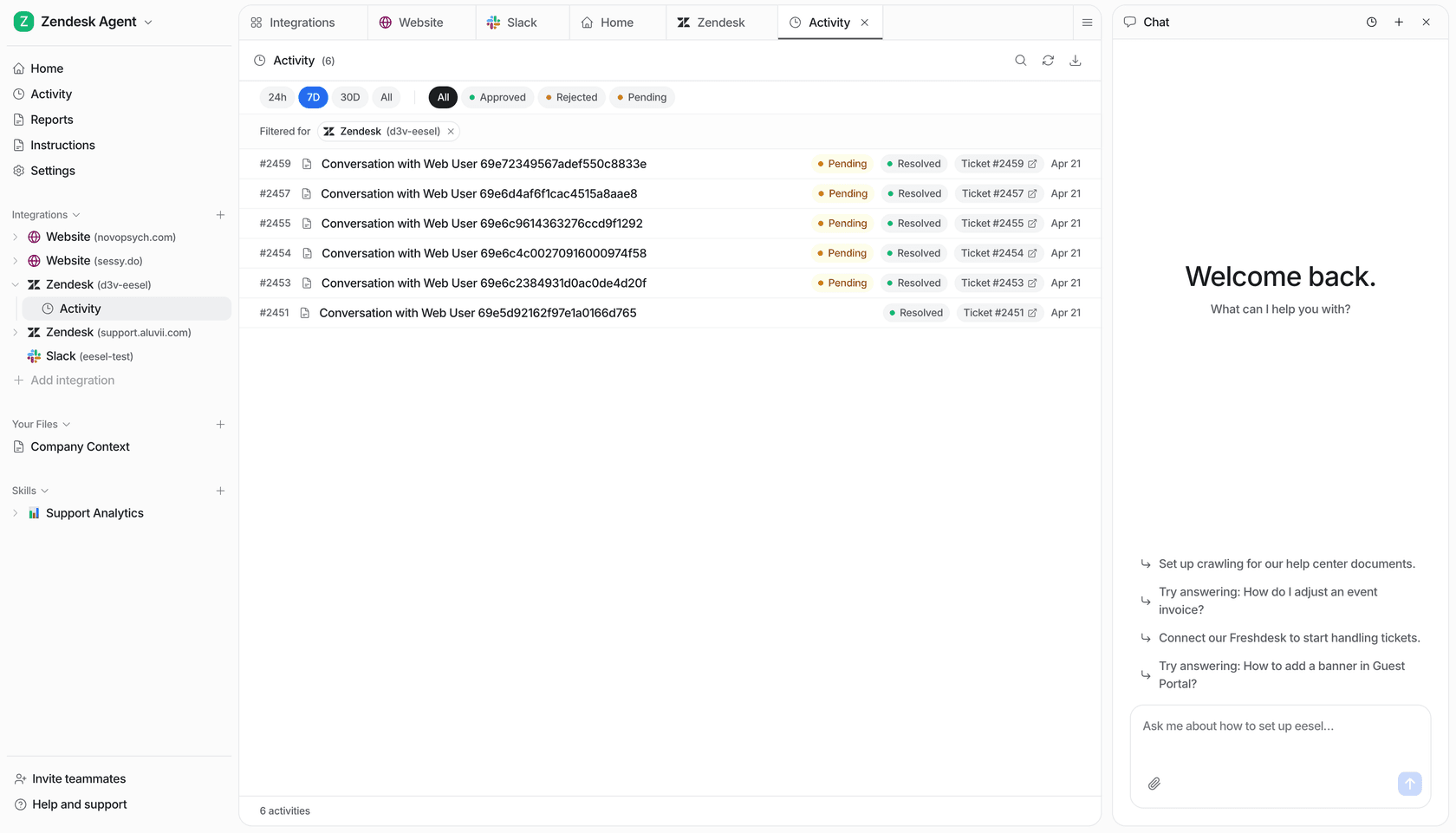
It respects your existing Zendesk triggers, SLAs and business hours, so it sits on top of the workflow you already built rather than replacing it. And the results are real: Gridwise's team put it plainly.
In the first month, eesel is resolving 73% of our tier 1 requests. The platform even includes automations for ticket tagging, assignment, and status updates.
Kim Simpson, Gridwise
On cost, the model is deliberately different: one fixed monthly price from $299/month for 500 credits, no per-seat fee and no separate add-on. A ticket is one credit no matter how many replies it takes. At 1,000 tickets a month that is the $499/month plan, and only the tickets you actually route to the AI use credits. Full numbers are on the pricing page.
Try eesel on your Zendesk
If your goal is just to sort and route tickets, Zendesk's intelligent classification does that well, and if you are already all-in on the Suite it is the path of least resistance. But if what you actually want is for tier-1 tickets to get answered, not just labelled, that is where I would point you at eesel.
It plugs into Zendesk in about 30 minutes, triages and resolves in the same agent, and lets you simulate on past tickets before it touches a live customer, so you can see the resolution rate you would actually get. It is the same AI teammate model behind our Freshdesk, Gorgias and Help Scout integrations, and it is free to try with 100 credits and no credit card. Bring your messiest queue and watch the simulation before you spend a cent.