


Configure the boundaries before the wording
In the AI agents workspace, select the agent, choose Settings, then choose General or Advanced settings. Zendesk says client admins can access all settings; the available controls also depend on the agent type and plan. Start with a small named job such as delivery-status questions, then configure the controls that change what customers see and what systems can connect.
| Zendesk setting | Effect | Change it when | Validate it with |
|---|---|---|---|
| AI agent name | Names the agent in Zendesk’s selection list | You need an unambiguous build, staging, or production agent | Confirm the selected agent before every test |
| Display name | Customer-facing name in the messaging widget | The messaging agent needs a customer-facing identity | Open the widget and confirm the label |
| Channel | Sets the agent as messaging or email | You are defining which conversation surface it serves | Run a case in the intended channel |
| Reply delay (minutes) | Delays email-agent replies; it does not apply to tests | You want email timing that is not instant | Check a non-test email and hide pending replies to avoid false “open ticket” signals |
| Activate LLM / zero-training / agentic AI | Shows the response mode; agentic AI overrides zero-training settings | Review the agent's creation date and available controls before changing modes | Agents created after March 4, 2025 cannot opt out of the listed LLM/zero-training selections; those created after April 20, 2026 cannot opt out of agentic AI |
| Subdomain | Declares the website where the agent is served | You are deploying the web experience on a specific site | Confirm the widget appears only on the intended site |
| Frame ancestors | Lists sites allowed to render the agent in an iframe-like element, helping prevent clickjacking | The agent is embedded outside the primary page | Test the allowed embed and a disallowed origin |
| CRM IP allowlist | Restricts IPs that may connect the agent and CRM | A CRM connection needs network restrictions | Validate a permitted connection and document the owner of each IP |
| Internal comment | Stores setup information for other agent managers | A decision or exception is not captured by another field | Ask a second admin to find and understand it |
These are named Zendesk controls from its General settings and Advanced settings articles. A polished persona or broad knowledge source cannot repair an unsafe channel, origin, CRM boundary, or email threshold.
Zendesk describes AI agents with agentic AI as using AI-driven procedures within business procedures. That distinction matters: let the agent adapt language and collect context, while business rules decide what outcomes are permitted.
Test the failure paths
Build a test set from normal requests, stale articles, policy exceptions, ambiguous language, and requests that would trigger an action. Check not only the reply but whether it selected the correct source, procedure, and handoff. Keep pending-reply behavior clear during tests so internal workflow states are not mistaken for a customer-facing response; Zendesk calls this out in its general-settings documentation.
Use eesel alongside the Zendesk dashboard
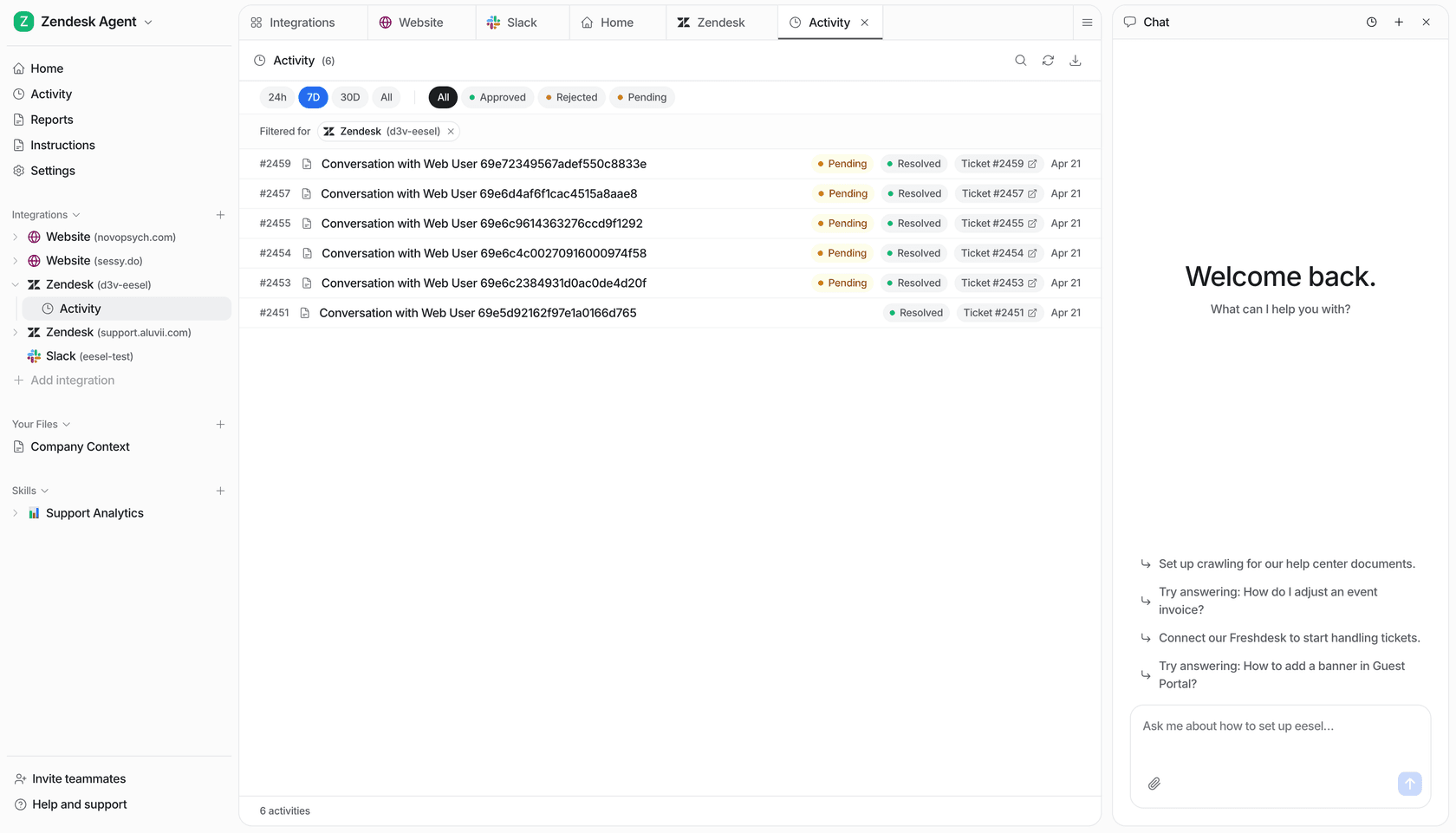
The eesel Activity page shows Zendesk conversations, status filters, and the teammate chat panel.
eesel CLI lets a support lead, script, or coding agent use the same eesel teammate and workspace as the dashboard. Node.js 18.17+ is required; npx @eesel/cli and eesel are the same CLI. Do a read-only review before changing a live workflow:
npx @eesel/cli integrations --agent "Zendesk support"
npx @eesel/cli integrations download list --agent "Zendesk support"
npx @eesel/cli instructions --agent "Zendesk support"
npx @eesel/cli automations --agent "Zendesk support"
Use this review before changing a Zendesk handoff or pending-reply policy: compare the intended handoff wording to the eesel teammate's standing rules and inspect automations that could also reply to the ticket. A support lead approves the eesel change; then a script or coding agent can parse the JSON and report the post-change activity. Preview a supported write with --dry-run. Before a test, disable or restrict outgoing actions outside its scope; a held-action list does not cover actions configured to run automatically. The CLI inspects eesel's teammate, not Zendesk's native agent configuration.
The rollout checklist
- One narrow customer job and a named owner.
- Approved sources, procedures, and no-answer/handoff cases.
- Test cases for expected failures, not just successful answers.
- An approval boundary for consequential actions.
- A review of activity and customer outcomes after rollout.
Get a Zendesk teammate you can inspect
eesel can sit with the Zendesk workflow your team already owns. Use its dashboard or CLI to inspect sources and instructions, run a controlled test, and only then expand what the teammate is allowed to handle. Try eesel.
Frequently asked questions
Where are Zendesk advanced AI agent settings?
Zendesk documents the general settings page for AI agents. Availability depends on your account and plan, so use Zendesk’s settings guide for the current route.
What should I configure first?
Start with the supported channels, knowledge sources, customer scenarios, and escalation rule. A persona is useful only after the agent knows when it must not answer.
What are generative procedures in Zendesk?
They are AI-driven procedures that guide a conversation within business rules. Use them for repeatable work, and check their result against your policy and tool permissions.
Can I test Zendesk AI agent changes?
Test representative questions, including missing knowledge and exception paths. Treat a successful happy-path answer as one test case, not rollout proof.